
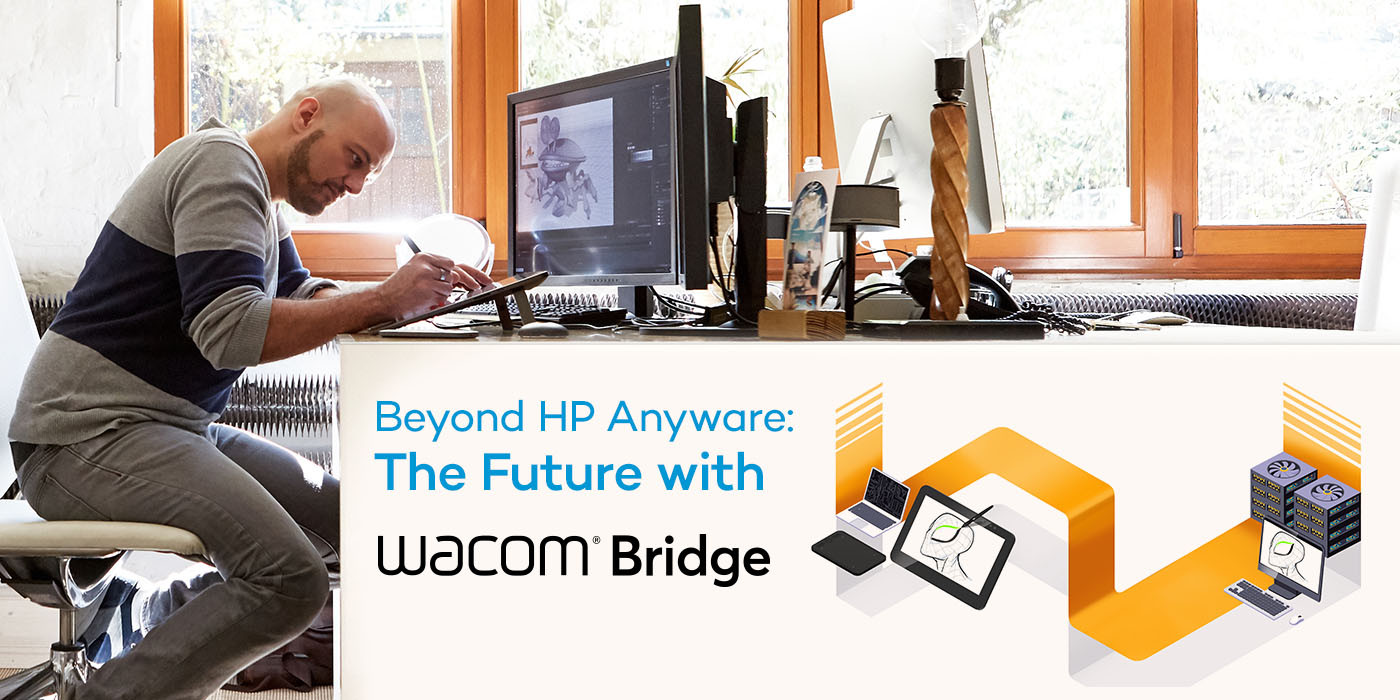
If your studio or enterprise relies on HP Anyware (formerly Teradici) to support remote creative workflows, you’ve likely already seen the news: HP has announced End of Life for HP Anyware, effective May 7, 2026, with new sales halted and full support ending by October 31, 2029.
For IT administrators managing distributed teams of artists, designers, animators, and VFX artists, this creates an urgent planning question: what comes next?
This post covers what the HP Anyware EOL means in practice, what to look for in a replacement, and how Wacom Bridge – built specifically for professional creative workflows – fits into the landscape of remote desktop solutions available today.
What the HP Anyware End of Life Means for Your Team
HP announced that as of May 7, 2026, HP Anyware is no longer available for new purchase. Existing customers can renew subscriptions through October 31, 2027, and receive maintenance and support through October 31, 2029. The on-premises Anyware Manager (Installable) loses support starting November 1, 2026.
For organizations running Wacom tablets and pen displays on HP Anyware: your Wacom devices will continue to work on your current HP Anyware environment, but Wacom cannot guarantee compatibility or support after HP’s EOL dates. We strongly recommend beginning your transition evaluation now.
The practical reality is this: migrating remote desktop infrastructure takes time. Studios that start evaluating alternatives today will have the smoothest transitions.
What Creative Teams Actually Need From a Remote Desktop Solution
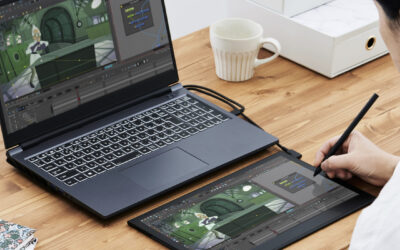
General-purpose remote desktop tools are built for mouse-and-keyboard workflows. That’s fine for most enterprise use cases – but creative professionals have fundamentally different requirements:
Pen pressure and tilt sensitivity over the network. Professional Wacom tablets support up to 8,192 levels of pressure sensitivity. A remote desktop solution that relies on basic USB redirection to pass pen data degrades this significantly, adding latency and dropping fidelity that artists can feel immediately.
Application-specific tablet settings. Artists configure per-application brush mapping, express key shortcuts, and touch settings. These customizations need to follow them whether they’re working locally or on a remote workstation.
Minimal latency for long-distance connections. Studios increasingly work with globally distributed talent — an artist in London rendering on a workstation in Los Angeles needs a workflow that feels local, even across thousands of miles of network distance.
No device lock-out. Traditional USB redirection “hands off” the Wacom device entirely to the remote system, leaving the local machine without tablet access. Artists switching between local and remote applications mid-session lose time and focus.
What Is Wacom Bridge?
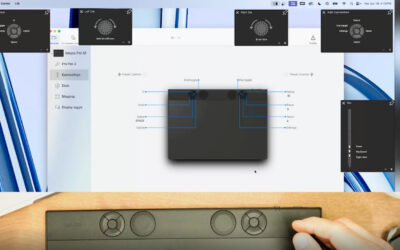
Wacom Bridge is Wacom’s proprietary driver-to-driver technology for remote desktop environments. Rather than redirecting the USB device, Wacom Bridge establishes a direct connection between the Wacom driver on the local machine and the Wacom driver on the remote machine – transmitting pen data independently from the video stream.
This architecture delivers three key advantages over traditional approaches:
Full driver fidelity on both ends. Both Windows Ink and Wintab are fully supported on the local and remote system simultaneously, without USB redirection. All tablet settings, including application-specific configurations, apply on both systems automatically.
Seamless local/remote switching. Artists switch between local and remote application windows the same way they always have — by clicking into them. There’s no mode to toggle, no device to “release and recapture.” The pen just works, wherever the active window is.
Wacom Inkline for latency compensation. On high-latency or long distance connections, Wacom Bridge draws a temporary local line at the point of contact, bridging the visual gap between pen tip and rendered stroke. For artists working across continents or with slower connections to the internet, this feature alone dramatically improves the creative experience.
Certified Remote Desktop Partners: Amazon DCV and Splashtop
Wacom Bridge integrates with enterprise-grade remote access platforms your team may already use or be evaluating.
Amazon DCV
Amazon DCV (formerly NICE DCV) is AWS’s high-performance remote display protocol, widely used in media and entertainment, VFX, and engineering workflows. Wacom Bridge is fully integrated with Amazon DCV, supporting:
- Amazon EC2 GPU instances (cloud workstations) (free of charge on AWS workloads)
- WorkSpaces Applications (from v1.3.0) (free of charge on AWS workloads)
- On-premises workstations running DCV server (for a small additional free)
Requirements: Amazon DCV version 2024.0.8004 or later; Wacom driver v6.4.11 or later on both local and remote systems.
Set up Wacom Bridge with Amazon DCV →
Splashtop
Splashtop is a widely-adopted remote access platform optimized for creative and technical professionals. Wacom Bridge is available to all Splashtop Business Access Performance or Enterprise users at no additional charge.
Requirements: Splashtop client and streamer v3.6.2.0 or later; Wacom driver v6.4.6-2 or later on both systems.
Splashtop’s Wacom Bridge integration was the first to launch globally, and it’s been refined through real-world use by studios and creative teams around the world.
Set up Wacom Bridge with Splashtop →
How Wacom Bridge Compares to the Alternatives
As HP Anyware exits the market, several remote desktop solutions are positioning themselves as replacements. For IT administrators evaluating options for creative teams specifically:
| Capability | USB Redirection | HP Anyware (EOL) | Wacom Bridge |
|---|---|---|---|
| Full pen pressure over network | Limited | Yes (PCoIP) | ✓ Yes |
| App-specific tablet settings | No | Partial | ✓ Yes |
| Local/remote simultaneous access | No | No | ✓ Yes |
| Latency compensation (Inkline) | No | No | ✓ Yes |
| Multi-protocol support | N/A | PCoIP only | ✓ DCV + Splashtop |
| EOL risk | Low | ⚠ EOL May 2026 | ✓ Active Development |
Planning Your Migration
If your organization is running HP Anyware today, here’s a practical starting point:
- Audit your current environment. Identify which Wacom devices are in use, which applications rely on PCoIP-specific features, and how your tablet settings are currently managed.
- Evaluate your remote desktop platform. If you’re using multiple operating systems (Linux, MacOS, Windows), DCV is a good fit. If you need a simpler managed solution that supports on Windows, Splashtop Enterprise is worth evaluating.
- Test Wacom Bridge with your workflows. Wacom Bridge works best when tested against the specific applications your team uses – ensure your Wacom driver version and Wacom hardware meets the minimum requirements for your chosen platform.
- Contact a Wacom Bridge specialist. Wacom can connect you with a specialist to walk through your specific environment and help ensure workflows remain uninterrupted during the transition.
Next Steps
Have questions about transitioning from HP Anyware to Wacom Bridge? Fill out the form below to connect with our specialists: