
Not every digital artist fully customizes their Wacom tablet settings. Many just use the default settings, and some of us only customize the basics – pen buttons and ExpressKeys. But there's a whole world of settings that can be adjusted in Wacom Center for virtually every Wacom product, so your workflow can be completely personalized. Some of the settings aren't well-known – and even professional digital artists don't realize they're available to be utilized!
This series of blog posts, by Wacom Expert Kyle Runciman, will cover lesser-known Wacom Center features and settings! Up first: Pinnable ExpressKey Settings Windows. Check out the video below for a tutorial, and stay tuned to the Wacom blog (and/or subscribe to the Wacom Creative eNewsletter) for more tips and tricks!
If you have just started working with a Wacom tablet, Wacom Center is where to go for all your tablet settings, like ExpressKey and pen button customizations. There are a ton of features within Wacom Center, some that even the most experienced Wacom users may not be familiar with.
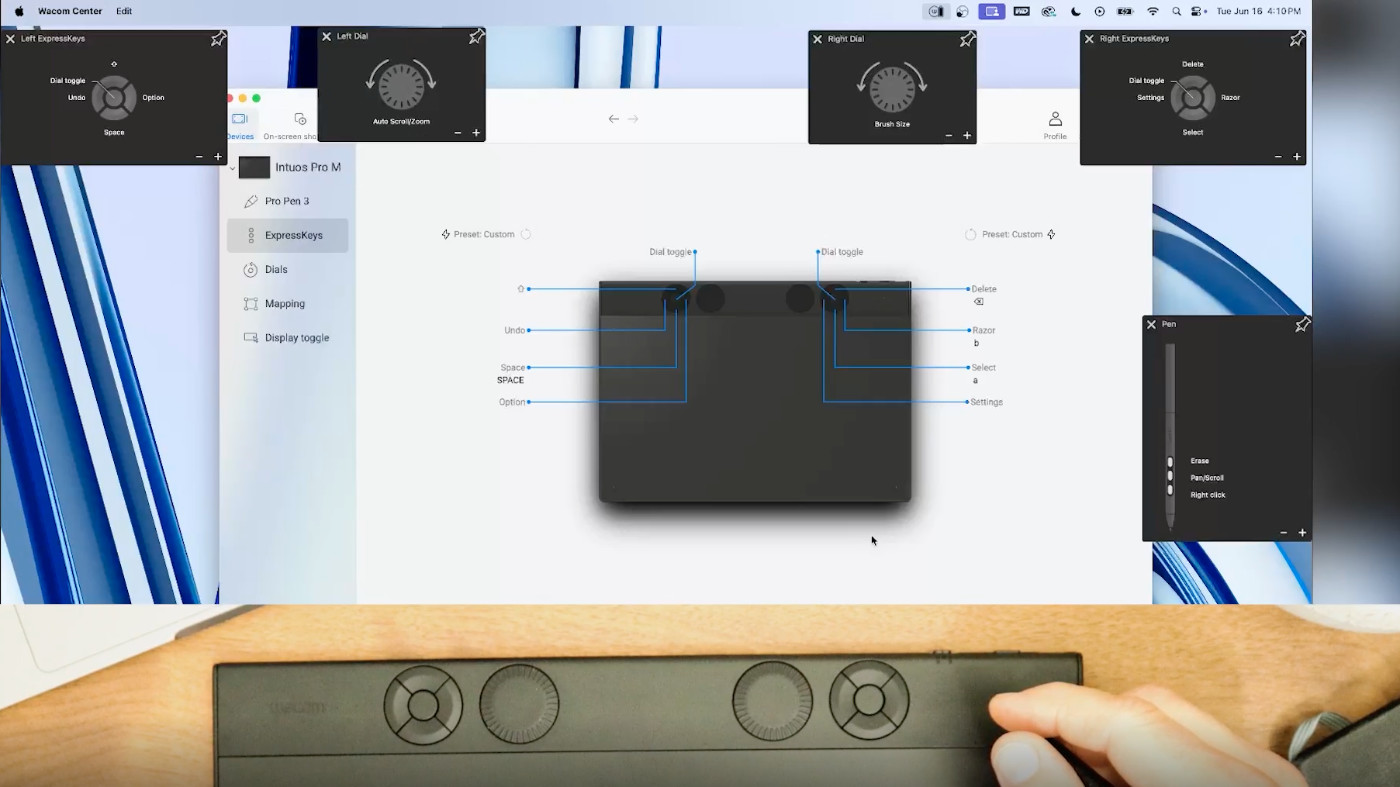
I’m using an Intuos Pro Medium here. If we go to the ExpressKeys tab within Wacom Center, we can see that ‘Settings’ is one of the defaults mapped to the left bank of buttons. I like to set the left ExpressKeys to my go-to preferences for sketching workflows, so I’ll be adding Settings to the right group of ExpressKeys. I’ll simply click on the Undo button here and select Settings from the recommendations.
When you hit the Settings ExpressKey, you’ll see a few windows pop up showing the ExpressKey mappings, the pen button assignments, and the active function of the Dials. These windows can be moved around and pinned in place.
For me, having the Dial Settings on display helps avoid making unintentional changes when video editing. Both center ExpressKeys are set to Dial Toggle by default. I use the toggle to cycle through functions on the dial for things like zooming in and out of the timeline, nudging a clip by a frame or by five frames. So, I pin that window in place and close the others by hitting the Settings key again.
With the Dial Settings window pinned, I now have a real time indicator of the active function of the dial, and a read out for when I am switching between modes.
Of course, this is just one use-case for these Settings windows. If you have different ExpressKeys mapped for a number of different software, it can be useful to have that reminder of those settings when switching between applications.
That’s a quick look at what the Settings feature is in Wacom Center. Keep an eye out for more tips and tricks videos coming soon!