If you're putting together your Christmas wish list or trying to find something suitable for a creative loved one, or even if you're just in the market for some digital art tech independent of the holidays, there are a lot of options. Wondering which Wacom tablet should you buy for yourself? Which Wacom tablet would make the best Christmas gift?
Keep reading to find out – and to see what's on sale during Wacom's Early Black Friday Sale!
Wacom has been the industry leader in creative pen displays and tablets for over 40 years. While most professional art, design, film, game development, animation, comics, and other creative studios rely on Wacom products, we also create a wide range of drawing tablets for artists across skill levels and experience – and at all price points.
So what should you get? Do you need a Wacom Intuos Pro, for example, or would an Intuos work for you? How about the Cintiq line, or the new Movink and MovinkPad line? What do all of the different specifications even mean, and which products are best for which purposes? This article aims to answer all of your questions.
First: what's the difference between a drawing tablet, pen display, and all-in-one drawing pad?
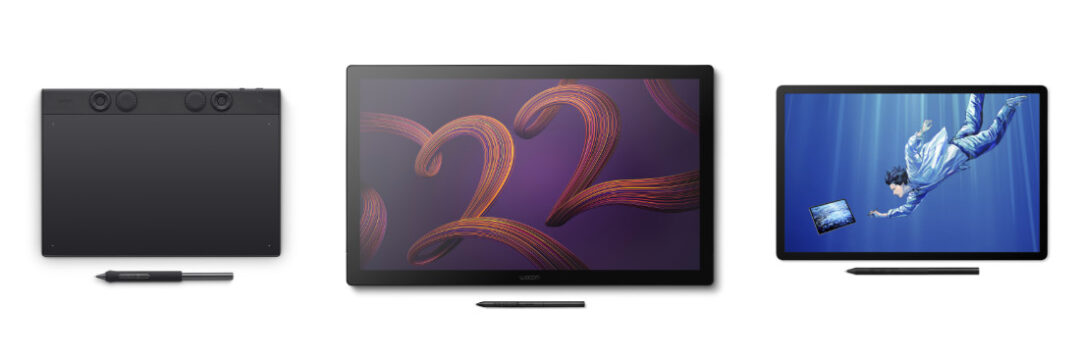
While all Wacom products are often called "drawing tablets," there are three main different types of devices that digital artists use to create their work: pen tablets, pen displays, and all-in-ones. Each type of creative pen display or tablet can be used for essentially every artistic purpose, and choosing which type is essentially about individual preference. Want to learn more about all the differences? Click here.
Pen tablets, also called “opaque” or "flat" tablets, like Wacom Intuos, function like a much more precise mouse. The movement of the pen on the device moves the cursor on the screen of your computer and controls things like clicking. They're often preferred by graphic designers and 3D artists because your hand doesn't block your view of your work.
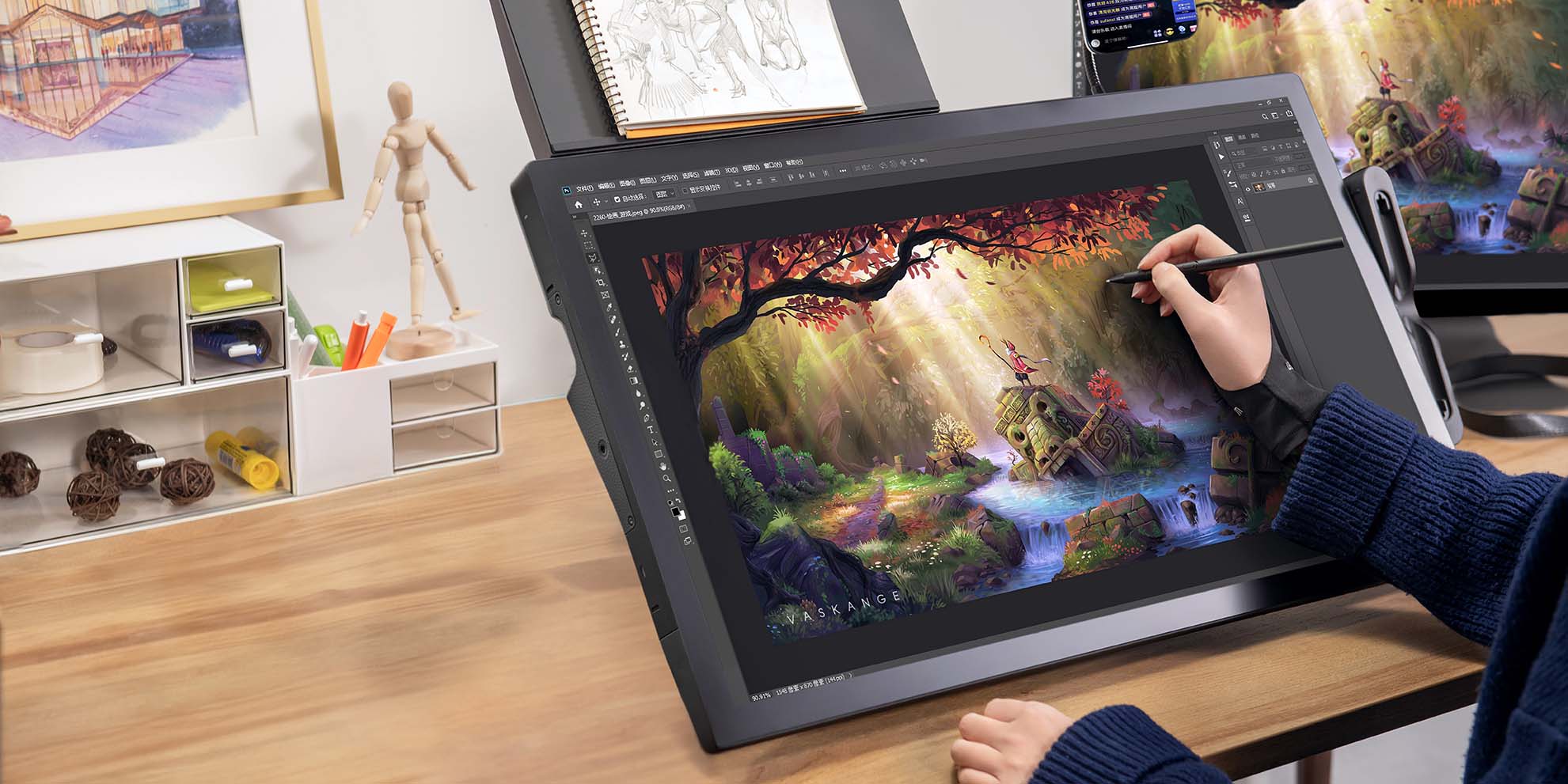
Display tablets, also called “pen displays,” like Wacom Cintiq, function like a pen-enabled monitor. You can draw directly on the screen. They're often preferred by illustrators, digital painters, and comic artists because the user experience is similar to using traditional paints, pens, paper, and canvas.
All-in-one tablets, like the Apple iPad or the new Wacom MovinkPads, are like display tablets but with a built-in computer. You can draw directly on the screen, but they use their own suite of mobile apps (with their own limitations). Creators of all kinds use them if they travel a lot or need portability.
So, choosing a device type is up to preference, but a few factors can play a role: price is important, as pen tablets are often the cheapest option. Then portability matters – pen tablets and all-in-ones can travel, while pen displays typically need to stay tethered to your desk setup. Finally, there's use case: graphic designers, photo editors, game designers, content creators, and film editors typically prefer a pen tablet, while illustrators, digital painters, fan artists, and artists coming from a traditional art background usually prefer a pen display. So what you or your loved one plans to do with the device will shape your choice.

Should I get an entry-level model or a professional-level model?
Once you've decided whether you want to go for a pen tablet, pen display, or all-in-one, you need to decide: should you go for an entry-level model or get the higher-end professional version? If you're a complete beginner, or are shopping for one, you should definitely look at Wacom's entry-level models! There are pen tablets, displays, and all-in-one portable pads at affordable price points for absolute beginners.
But what if you've been creating for a while using a mouse, but want to upgrade? Or you've used a pen tablet like Wacom Intuos but are trying to decide whether to upgrade? Or your loved one is starting a digital art program in college, and you want to know what will best support their studies? You might want a pro version. Here are the main differences:
Pen tablets: the entry-level Wacom Intuos vs. professional-level Intuos Pro
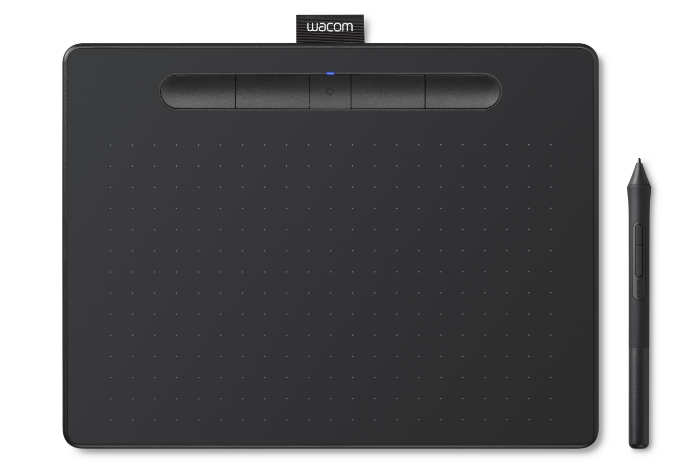
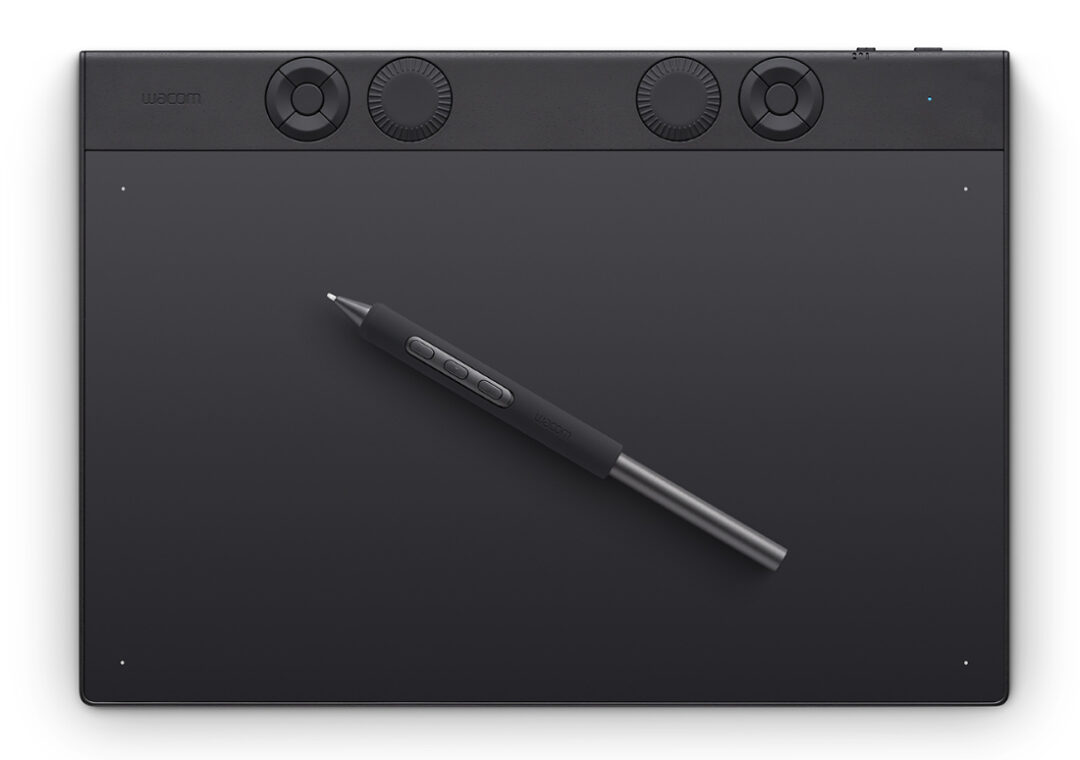
| Wacom Intuos | Wacom Intuos Pro | |
|---|---|---|
| Preferred by: | Beginners and enthusiasts in photo editing, drawing and illustration, fanart, comics, graphic design, content creation, and digital painting | Art students, freelancers, and professional graphic designers, 3D artists, game designers, engineers, product designers, motion graphics artists, and film editors |
| Sizes | Small (7.87 x 6.3") and Medium (10.4 x 7.8") | Small (8.5 x 6.4"), Medium (11.5 x 8.1"), and Large (14.8 x 10") |
| Colors | Black and Pistachio Green | Black |
| Included Pen | Wacom 4K Pen – 4,098 levels of pressure sensitivity, two customizable buttons | Wacom Pro Pen 3 – 8,192 levels of pressure sensitivity, three customizable buttons, customizable grips & weight balance |
| Built-in ExpressKeys | Yes (4) | Yes (5-10 buttons, 1-2 tactile dials) |
| Bluetooth? | Wired version + Bluetooth wireless versions | Bluetooth wireless w/ multi-device switch |
| Included Software | Two years Clip Studio Paint, 90 days Corel Aftershot & Painter Essentials 8, three months Magma Blaze, three months Skillshare | Six months Clip Studio Paint, three months CaptureOne, three months MASV |
| Price Range | $39.95 USD (Small, wired) to $129.95 (Medium, wireless) Black Friday Sale: Small and Medium wireless Intuos are $10-20 off for a limited time! | $249.95 (Small) to $499.95 (Large) Black Friday Sale: All sizes of Intuos Pro are $30-$70 off for a limited time! |
| Where to Buy: | Amazon | Wacom eStore |
As you can see from the above chart, there are a variety of differences between the standard Wacom Intuos and the professional-level Wacom Intuos Pro. If you or your loved one are a beginner, the choice is easy! Something to keep in mind is that most beginners and amateurs can't usually tell the difference between the Wacom 4K pen and Pro Pen 3's pressure levels, or the performance improvements built into the upgraded IC chip in the Intuos Pro. However, if you or your loved one will be spending hours every day working on the device, then the customizability of the Wacom Pro Pen 3 can be crucial for ergonomic reasons – and the new design of the Intuos Pro, with its tactile dials and buttons, helps with ergonomics.
A big advantage for beginners with the Wacom Intuos Pro is the included two-year license to Clip Studio Paint – software used by comic artists and other creative professionals worldwide. Most pros already have their software of choice, or it's provided by their studio. Choosing Intuos gives the user two years to try out Clip Studio Paint and determine if it works for their use case.
Pen displays: Wacom One vs. Wacom Cintiq vs. Wacom Cintiq Pro

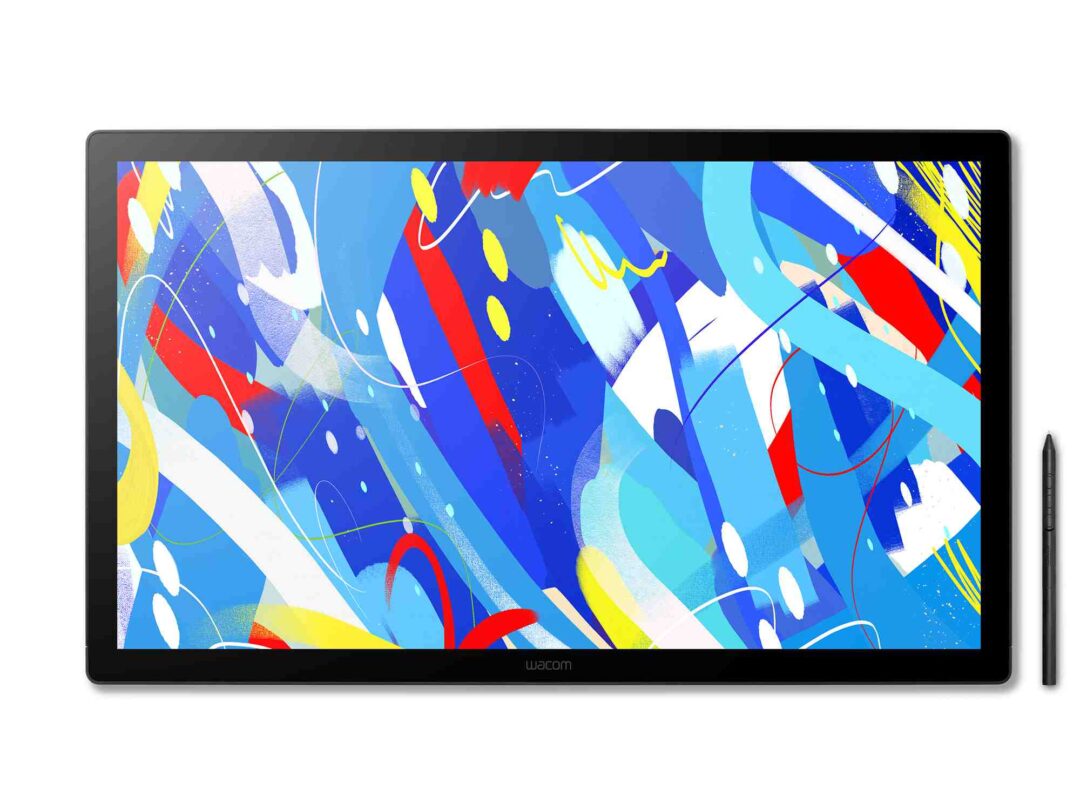

| Wacom One 14 | Wacom Cintiq | Wacom Cintiq Pro | |
|---|---|---|---|
| Preferred by: | Beginners, students, or budget-conscious fan artists, comic creators, or illustrators who are just getting started with digital creativity | Art school students, freelancers, or budget-conscious professionals with more experience in digital illustration, comics, animation, 3D art, game design, or more | Professional artists across creative industries who need the highest-performance digital tool complete with top-notch color accuracy, such as feature film editors, 3D animators, and commercial photo editors |
| Sizes | 14" model | 16", 24", and 24" Touch models | 17", 22", and 27" models |
| Multi-Touch? | No | On 24" Touch model | Yes |
| Included Pen | Wacom One pen – 4,098 levels of pressure sensitivity, two customizable buttons | Wacom Pro Pen 3 Slim – 8,192 levels of pressure sensitivity, built-in nib holder, and three customizable buttons | Wacom Pro Pen 3 – 8,192 levels of pressure sensitivity, three customizable buttons, customizable grips & weight balance |
| Built-in ExpressKeys | No | No | Yes (8 ExpressKeys on rear of display) |
| Display Resolution | HD | 2.5K | 4K |
| Included Stand | No | 16" – built-in feet, 24" and 24" Touch – included stand | No |
| Included Software | Passpartout 2, Three months Concepts, three months Clip Studio Paint Pro, three months Magma Blaze, three months Skillshare | Six months Clip Studio Paint EX, three months MASV | Six months Clip Studio Paint, three months CaptureOne, three months MASV, three months Toon Boom Harmony and Storyboard Pro |
| Price Range | $299.95 USD Black Friday Sale: Wacom One 14 is $50 off for a limited time! | $699.96 (16") to $1,499.95 (24" Touch) | $2,499.95 (17") to $3,499.95 (27") Black Friday Sale: Wacom Cintiq Pro 17 is $500 off for a limited time! |
| Where to Buy: | Amazon | Wacom eStore, Best Buy, Amazon | Wacom eStore, Best Buy, Amazon |
When it comes to display tablets, Wacom has four options to choose from – an entry level pen display (Wacom One), a mid-range pen display (Wacom Cintiq), a small, semi-portable professional level pen display (Wacom Movink – not included in the above chart) and a professional level pen display (Wacom Cintiq Pro). Unless you're a professional, need a color-accurate monitor, or need the absolute largest creative pen display you can get your hands on, you're probably choosing between Wacom One and Wacom Cintiq.
One of the key differences is size. Wacom One comes in a 14" model, which is big enough for all kinds of creative projects, but small enough that the Wacom One can fit in your book bag along with your laptop and travel with you. It's not as portable as a MovinkPad – see below – but it's still thin and light, and if you were going to be bringing your laptop with you anyway, it doesn't take up too much room. Its single-cable USB-C connectivity also helps with portability. If you opt for a larger device, like one of the 24" Cintiqs or the Cintiq Pro, you'll have a slightly more complex connectivity setup.
Another major difference is the pen. The Wacom One pen is a great option, with good pressure sensitivity and tilt recognition, as well as two customizable buttons. But the Pro Pen 3 is Wacom's top of the line stylus. The Pro Pen 3 that comes with Cintiq Pro models is even customizable with grips, button covers, and a weight that can be adjusted to fine-tune the pen's balance in your hand.
The biggest difference is price. Wacom One is extremely affordable for a creative pen display at only $299.95. It's the ideal choice for absolute beginners. If you're already an enthusiast – maybe someone who wants to upgrade from a pen tablet? – or are starting art school and want a solid device that will serve you well during school and for years beyond, then Cintiq is a solid choice, too. If you're a pro, then you already know that the Cintiq Pro is the ultimate creative pen display on the market!
All-in-one portable pads: Wacom MovinkPad 11 vs. Wacom MovinkPad Pro 14
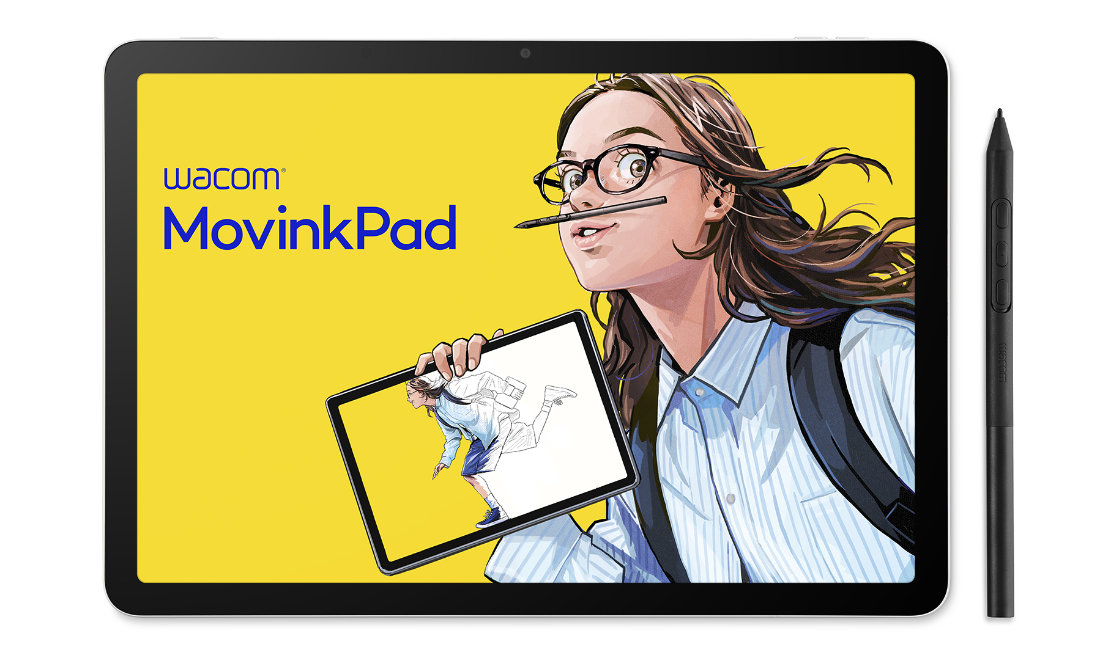
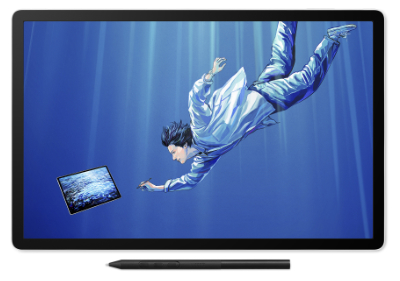
| Wacom MovinkPad 11 | Wacom MovinkPad Pro 14 | |
|---|---|---|
| Preferred by: | Creative kids, students, or anyone who loves to sketch and draw wherever they go | Art school students, freelancers, or budget-conscious professionals who need ultimate portability |
| Size | 11" | 14" |
| Multi-Touch? | Yes | Yes |
| Included Pen | Wacom Pro Pen 3 Slim – 8,192 levels of pressure sensitivity, built-in nib holder, and three customizable buttons | Wacom Pro Pen 3 Slim – 8,192 levels of pressure sensitivity, built-in nib holder, and three customizable buttons |
| Built-In Camera? | Front and rear cameras | No |
| Display | 2200 x 1440 px IPS display, 60-90Hz refresh rate | 2880 x 1800 px OLED display, 60-120Hz refresh rate |
| Specs | Android 14 OS, Mediatek Helio G99 processor, 8GB memory, 128GB built-in storage | Android 15 OS, Snapdragon® 8s Gen3 processor, 12GB memory, 256GB built-in storage (with microSD slot for expansion) |
| Included Software | Wacom Canvas, Wacom Tips, Wacom Shelf, 2-year Clip Studio Paint Debut trial license | Wacom Canvas, Wacom Tips, Wacom Shelf, 2-year Clip Studio Paint Debut trial license, 1-year Clip Studio Paint EX trial license, Wacom Labs with Instant Pen Display mode |
| Instant Pen Display mode? | No | Yes |
| Price Range | $449.95 USD Black Friday Sale: Wacom MovinkPad 11 is $50 off for a limited time! | $899.95 USD |
| Where to Buy: | Wacom eStore, Amazon | Wacom eStore, Amazon |
If you're looking for portability, the brand-new Wacom MovinkPad line is a great option. Both MovinkPads feature crisp, bright screens with the pen-on-paper feel Wacom is known for and the slim Pro Pen 3 with built-in nib storage. The display on MovinkPad Pro 14 is a bit bigger, a bit higher resolution, and is an OLED panel rather than LCD – so it has higher contrast, deeper blacks, and slightly more brilliant colors. The MovinkPad 11 also comes with a front and rear camera.
The other major difference between the two is that MovinkPad Pro 14 has a faster processor, more powerful GPU, more memory, more storage, and runs on Android 15 compared to Android 14. That means if you're creating complex pieces of work with many layers, or doing 3D artwork on the go, it has the power you need to keep everything smooth. Want to know more about the differences? Check out these comparison videos from Sarajean Chung:
Conclusion: should you get a Wacom Pro device?
The short answer is: if you're a professional, then yes, you should! There are a few other reasons you might get a Pro device if you aren't a pro: if you need high-end color accuracy, for example, or you need one of the largest devices Wacom currently makes: the largest Intuos Pro or Wacom Cintiq Pro. One other reason: if you're an amateur or freelancer who currently works on an entry-level or mid-range device but are ready to make a big upgrade to your setup as a means to jumpstart your career, then it might be a good move!
Otherwise, Wacom makes a range of devices because there are a range of artists and creative folks out there! You don't always need to get the highest-end device. Doing this can add cost to your purchase without adding features you'll be able to take advantage of. Wacom's entry-level tablets allow you to use the same brand and the same technology as the pros, but at an affordable price point!
And if you're buying a gift for a loved one this year, an entry-level device is usually your best bet. If they're experienced enough to make use of a pro-level Wacom device, they likely have their own preferences and needs – better to ask them, get them a gift card, or get them some accessories!