
Note: This tutorial was created by e1i_sky and has been slighly adapted by Wacom. Check out Eli's Magma page or Tik Tok channel for more Magma drawing content! Also check out another tutorial from Eli: How to easily create simple base colors.
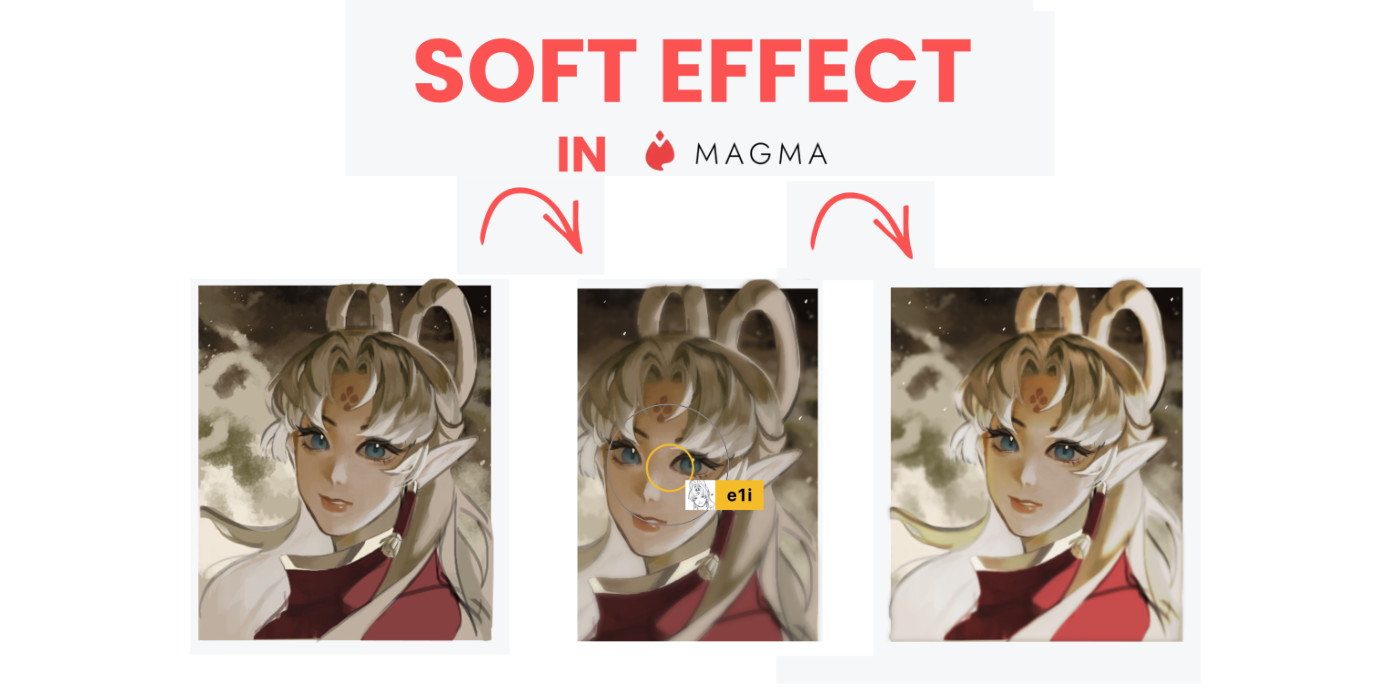
This tutorial is for when you want to give an element on your drawing some glow or simply look ethereal. This is also used for easing sharp edges in your artwork and achieving that soft texture look without it appearing too blurred, or when you want to emphasize a particular part of your drawing using smooth to sharp features.
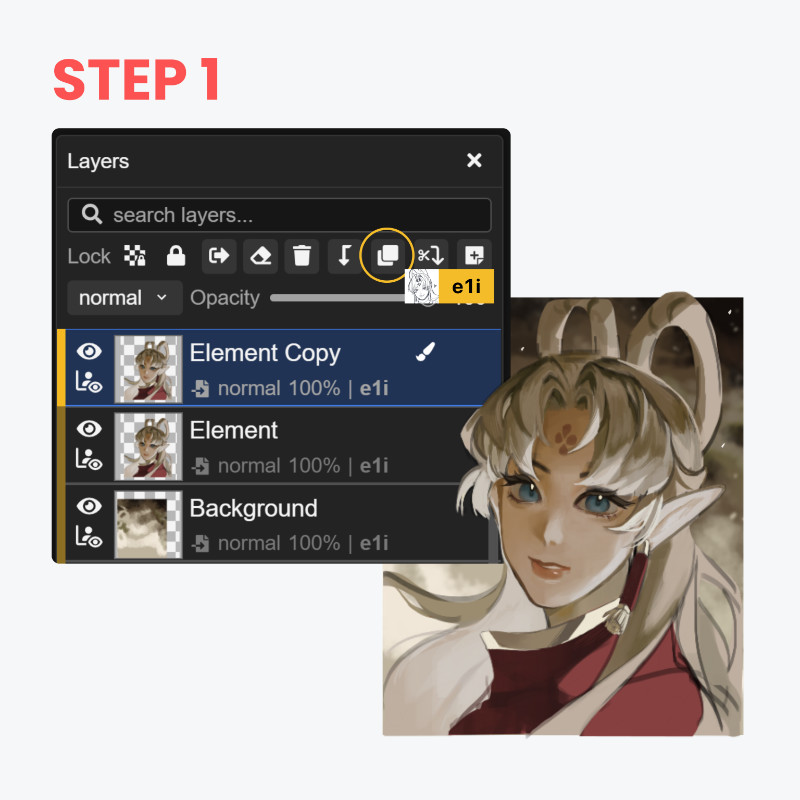
Step 1: Duplicate the layer you want to use the soft effect on
Duplicate the layer you want to use the soft effect on. This will separate your base element from the filtered layer that you'll be manipulating.
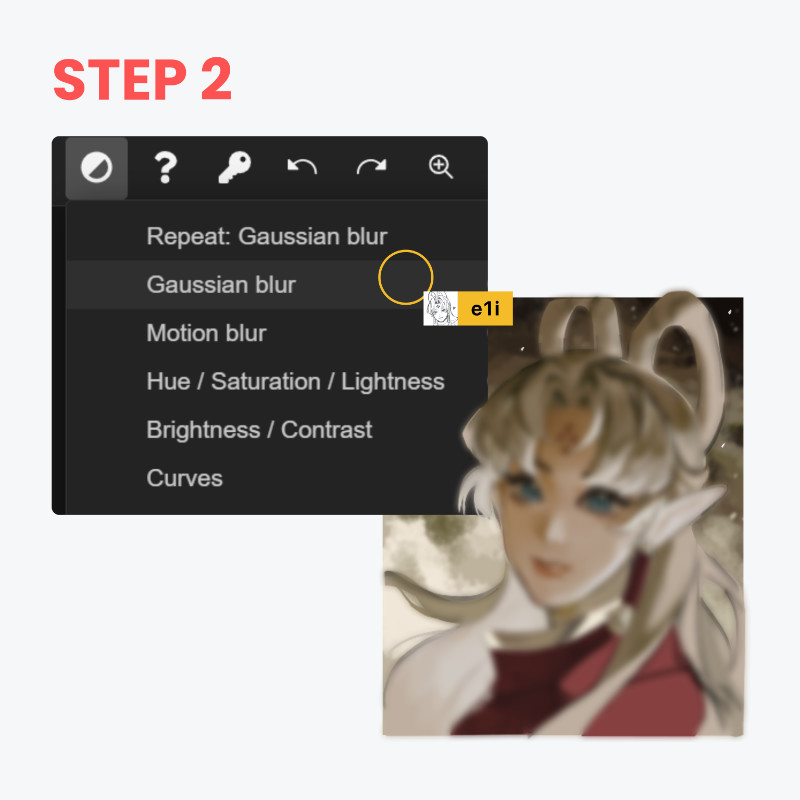
Step 2: Gaussian blur
Locate the Filter icon at the upper Toolbox. Then, click Gaussian blur. This will make your artwork look blurry at first, but it is an essential part in making the soft look.
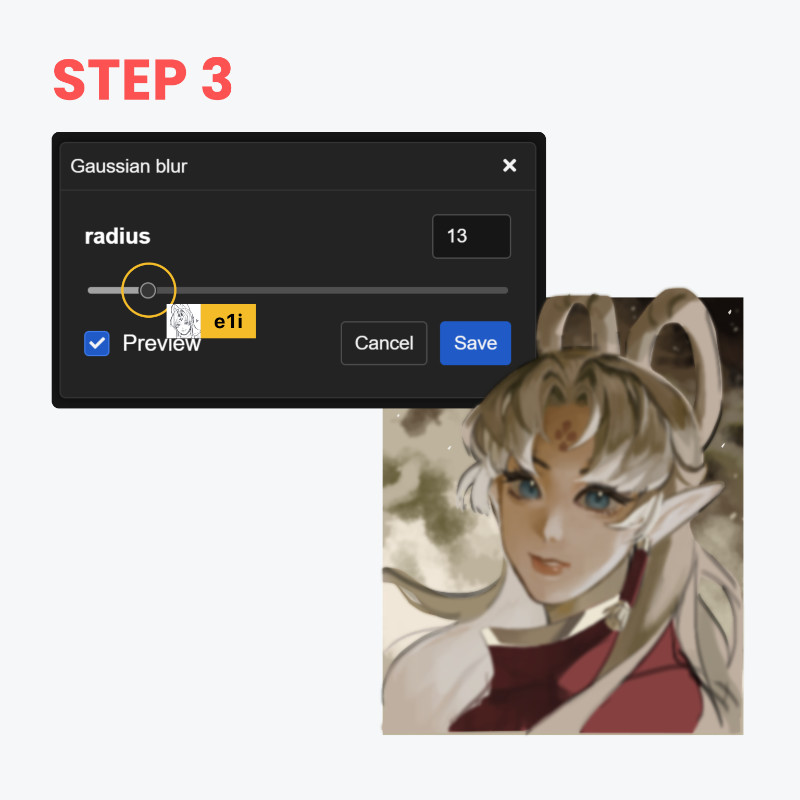
Step 3: Set the blur strength
Set the strength of the blur that’s not too much but also not too weak – just the right strength. Note that the blur strength depends on the size of your drawing, as well as its placement in the canvas (e.g. foreground and background). When it comes to sizes, smaller ones can do around 5-10, while bigger sizes can do 10-25.
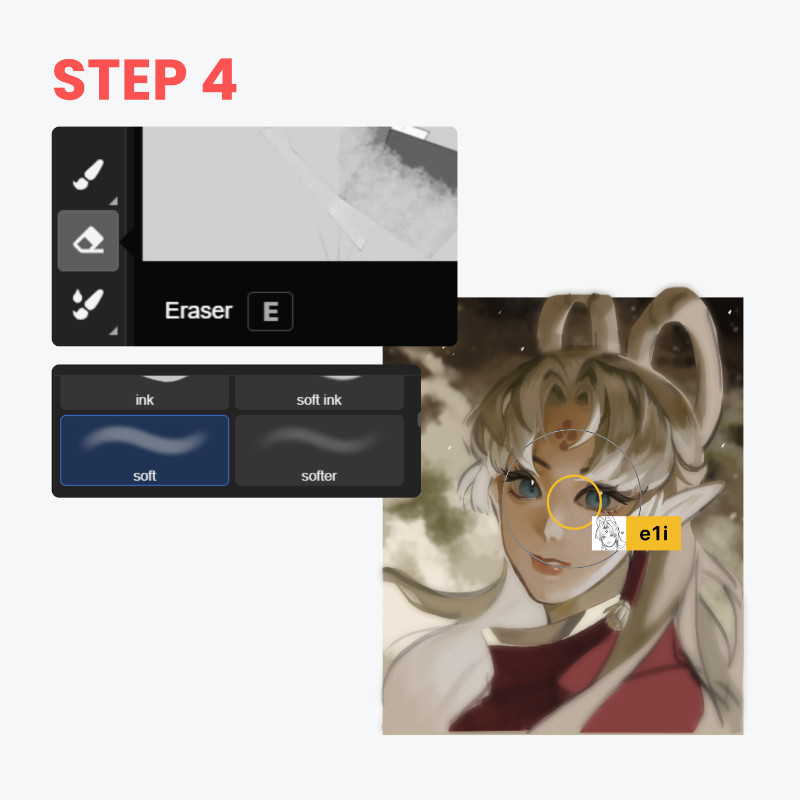
Step 4: Paint your base colors on layers clipped to your "base" layer!
Select the Eraser and use the Airbrush texture for it. Erase the area where the focal point is on to bring back the sharpness and have it stand out from the softness around it. This brings attention to that part of your artwork.
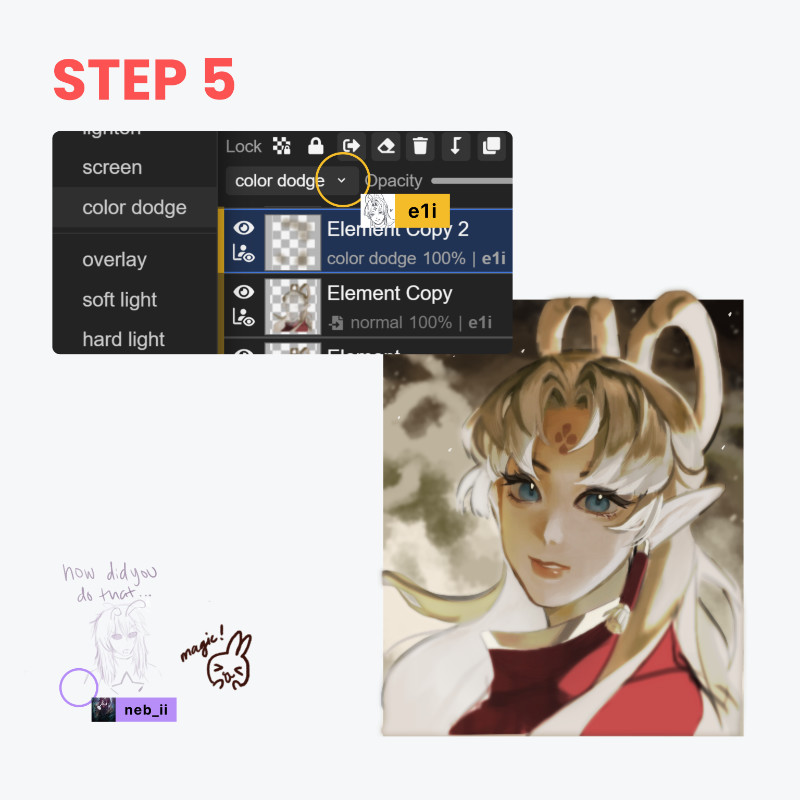
Step 5: Final touches
For the final touch, use a new layer above to play around with overlay or color dodge in the color modes section for some extra glow. Alternatively, you can duplicate the filtered layer and set the duplicate’s color mode to overlay or color dodge.
Now you have an artwork that looks like it came straight out of a photoshoot!
Besides achieving this effect, you can make use of the features you learned in this tutorial for other ways. For instance, Gaussian blur isn’t just for this soft effect, but it can also define the distance of elements in the canvas. The Filter section has more options that you can use in your drawings. And there are plenty of color modes in the Tool properties for you to try and learn to use. As you begin to learn these features, you will come to find how fun and satisfying it is to draw! So, keep practicing, artists!

Just getting started in Magma, or curious about the software?
Magma is an online, browser-based digital drawing software service made specifically for collaborating with other artists on a shared digital canvas. And did you know? You get a free three-month trial of Magma Blaze bundled with a variety of Wacom products, including the Wacom MovinkPad 11 all-in-one drawing tablet! Want to try out the software for the first time to join an Art Jam or create a Shared canvas? Check out this tutorial we created that walks step-by-step through the process!