
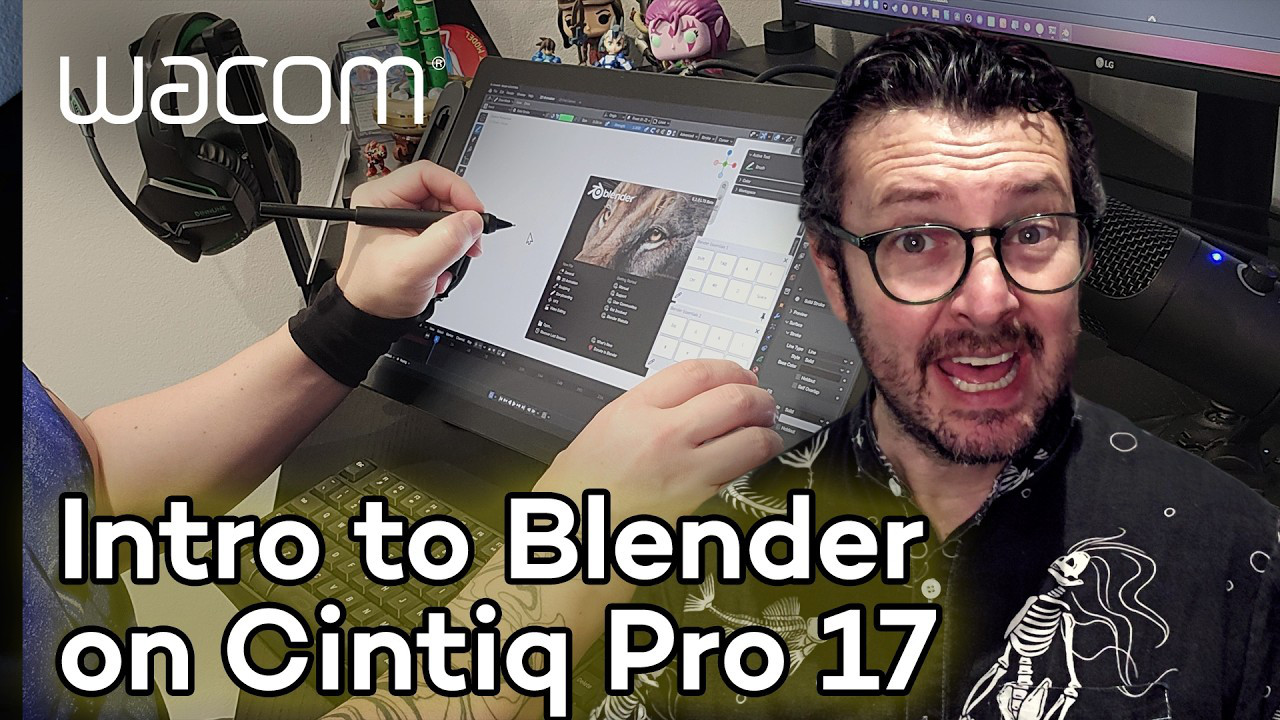
Paul Caggegi has 20 years of experience as a video editor, illustrator, course instructor, and content creator. He's an expert in Blender, especially using the Grease Pencil, and has a number of courses and classes through CG Cookie that go in-depth on how to use Blender, especially when paired with Wacom pen displays. In this upcoming four-part series, he'll walk beginners through how to set up and optimize their Wacom Cintiq – he uses a Cintiq Pro 17, but most of the tips and tricks will apply to other Wacom pen displays as well – for Blender workflows.
Here's what the series will cover:
- Introduction: Setting up a Wacom Cintiq for Blender (you are here!)
- Optimizing Blender for a Wacom Cintiq pen display (coming soon!)
- Creating Custom Brushes for Grease Pencil in Blender (coming soon!)
- Drawing Practice in Blender: Drawing a Hut (coming soon!)
How to set up your Cintiq for Blender
The Wacom Cintiq with touch functionality – either a Wacom Cintiq Pro or a Cintiq 24 Touch – is "the perfect tool" for Paul to animate, illustrate, and model using Blender. In the above video, he shows you how he sets up his device for the best Blender experience. Why Wacom Cintiq? It's a "quality, adaptable interface" for Blender that allows him to "work effortlessly via on-screen shortcuts, pen settings, and even touch."
1: Set up your ExpressKeys and Pen Buttons
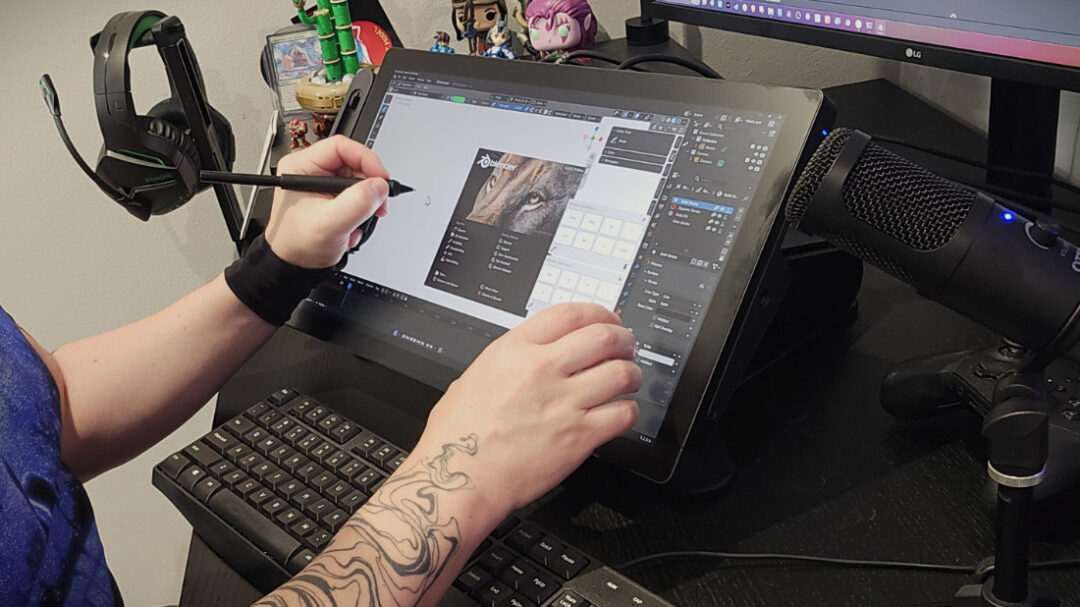
Paul's Wacom Cintiq Pro 17 has eight built-in ExpressKeys, and the Wacom Pro Pen 3 has three customizable buttons so he can personalize his workflow.
2: Set up on-screen grids for specific uses
He sets up new on-screen grids for specific uses for navigation and modifying other hotkeys. For example, his Add menu, toggling brush sizes, Escape, Enter, Grab, Rotate, Scale, and every other keyboard command he uses regularly can be assigned to a button for easy and seamless efficiency. Check out the video above to see all the details of how he sets everything up.
"This setup allows me to effortlessly use Blender with almost no interaction with a keyboard," Paul says. This type of setup "highlights how versatile Wacom tools are and why they're such a good fit for applications such as Blender."

About the artist
Paul Caggegi has been a motion-graphics artist, video editor, & 3D effects creator for over twenty years. He has worked on corporate campaigns, TV commercials, web videos, showreels, and media branding packages, and made comics content for clients such as Nickelodeon, MTV, BMW, and DC Comics.
He also works as an educator with CG Cookie, and has produced several courses and made storyboards, course content, and concept work, including their popular Blender Basics course.
Follow Paul's work and learn from his expertise on his YouTube channel, his page on CG Cookie, his website, or his LinkedIn.