
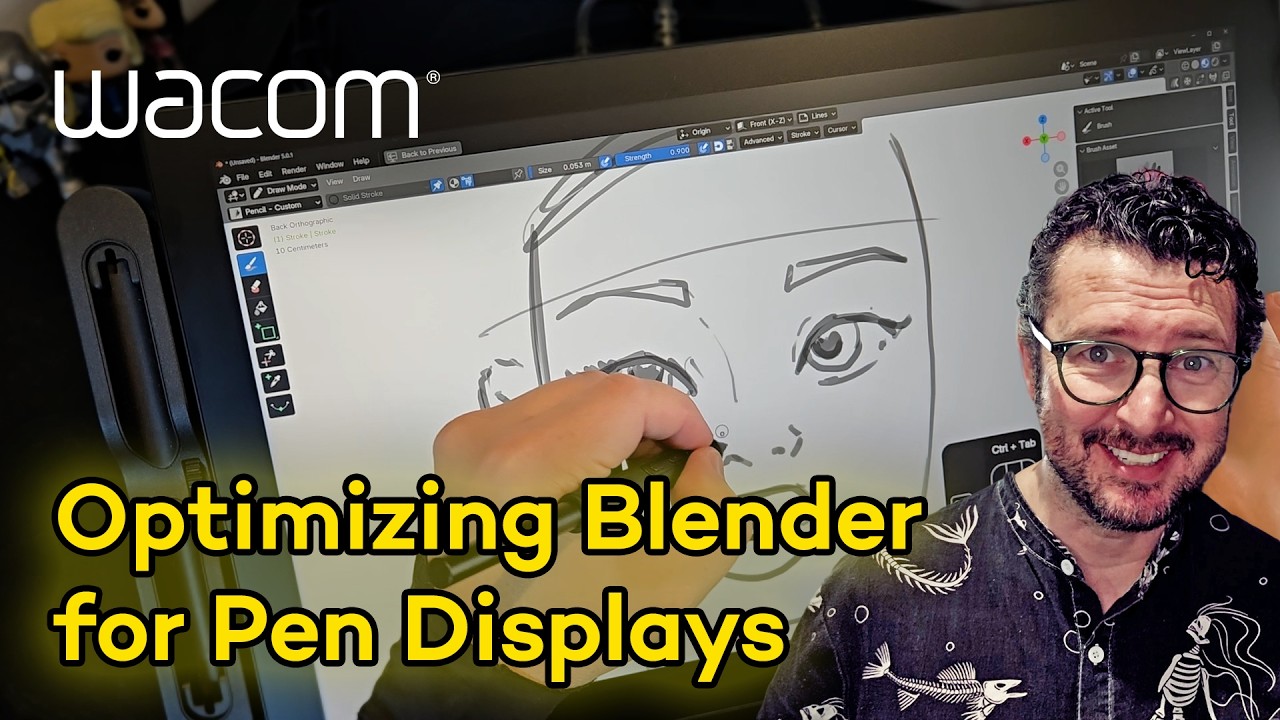
Paul Caggegi has 20 years of experience as a video editor, illustrator, course instructor, and content creator. He's an expert in Blender, especially using the Grease Pencil, and has a number of courses and classes through CG Cookie that go in-depth on how to use Blender, especially when paired with Wacom pen displays. In this ongoing four-part series, he'll walk beginners through how to set up and optimize their Wacom Cintiq – he uses a Cintiq Pro 17, but most of the tips and tricks will apply to other Wacom pen displays as well – for Blender workflows.
Here's what the series will cover:
- Introduction: Setting up a Wacom Cintiq for Blender
- Optimizing Blender for Wacom Cintiq pen displays (you are here!)
- Creating Custom Brushes for Grease Pencil in Blender (coming soon!)
- Drawing Practice in Blender: Drawing a Hut (coming soon!)
How to set up your Cintiq for Blender
In this video, Caggegi takes you through some of Blender’s preference settings to adjust for an optimal Wacom Cintiq Pro 17 workflow. Learn where Blender’s interface and tool shortcuts can be modified, and how to enhance a preset for drawing.
1: Screen Resolution
Paul leaves most of the settings at their defaults, but because he is using a Cintiq Pro 17, which as a 4K resolution display, the graphical UI in apps like Blender can be a bit small and the menus might be difficult to read. So he goes into the Interface tab and increases his resolution scale to 1.5.
2: Keymaps and Rendering
Under the Keymap section, he switches the middle mouse button from "Orbit" to "Pan," because he uses Pan more often – but when he holds down Shift, it will still toggle the button to Orbit.
He also changes his rendering settings under System. The default setting is for universal settings, but if you have a high-end computer with an Nvideo, Radeon, or Intel GPU, he recommends changing the setting to the specific one for that GPU to take advantage of Blender's power. He also sets his back-end display graphics to Vulkan.
Want to see the rest of his tips and suggestions? Watch the video above!

About the artist
Paul Caggegi has been a motion-graphics artist, video editor, & 3D effects creator for over twenty years. He has worked on corporate campaigns, TV commercials, web videos, showreels, and media branding packages, and made comics content for clients such as Nickelodeon, MTV, BMW, and DC Comics.
He also works as an educator with CG Cookie, and has produced several courses and made storyboards, course content, and concept work, including their popular Blender Basics course.
Follow Paul's work and learn from his expertise on his YouTube channel, his page on CG Cookie, his website, or his LinkedIn.