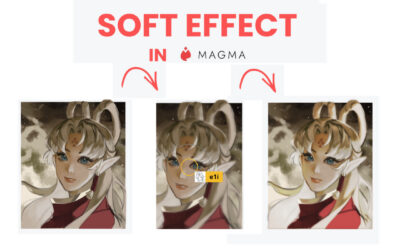
Note: This tutorial was created by e1i_sky and has been slighly adapted by Wacom. Check out Eli's Magma page or Tik Tok channel for more Magma drawing content!
Once you have your lineart ready, it's time to start coloring. But placing down your base colors on your artwork can take quite a while, despite it being just the flat colors of your artwork. One major issue is having to constantly erase parts that go outside the lines of the drawing, and the hassle of doing a lot of strokes to only color a part of the drawing can take so much time and effort. However, there is a way to place your base colors more efficiently in Magma, and you'll never have to worry about coloring outside the lines again!

Step 1: Add a new layer below your lineart layer.
After finishing your lineart/sketch, add a new layer and bring it below the lineart/sketch layer. This will be what I'll call the "base" layer; in the next step you'll create a solid layer of color beneath your lineart. Then, when you clip layers above it, they won't be able to ever go beyond the confines of the "base" layer you'll create, so you'll never paint outside the lines again!
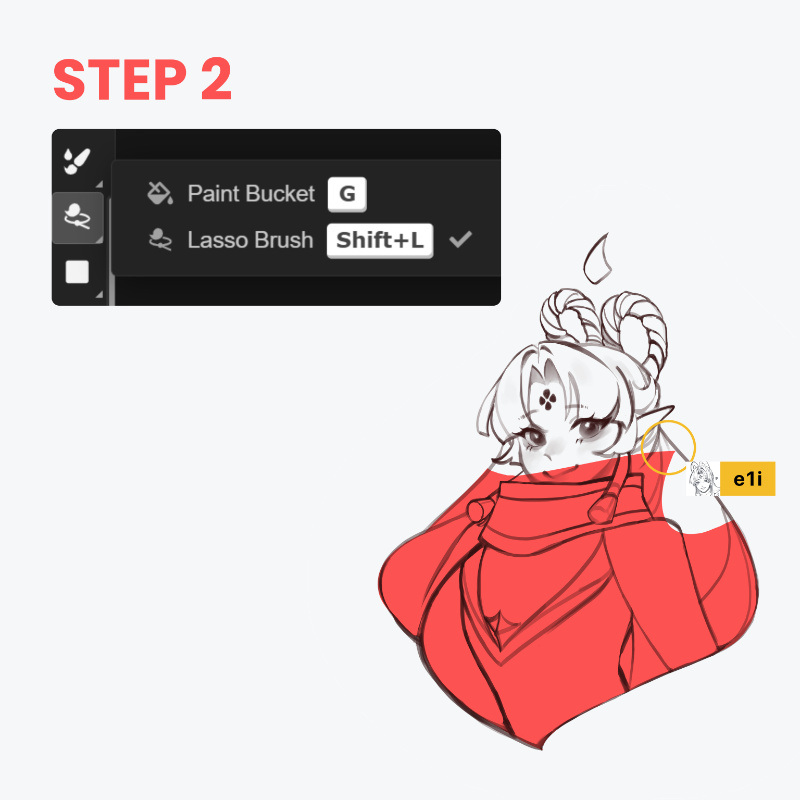
Step 2: Use the Lasso Brush to fill in the boundaries of your lineart.
Locate the Bucket Tool icon in the Toolbar, click it, then select Lasso Brush. Using this brush, fill up the entire area you want to color by carefully tracing around the edges of your lineart. It will automatically fill in a color to the area you lasso’d. We'll call this layer the "base" layer. This is easier with a Wacom tablet and pen, by the way!
Often, people think to use the Bucket Tool to quickly fill color into a closed area with one tap. However, what they don't always know is that the Bucket Tool leaves uncolored pixels near the lineart if its settings are not properly adjusted, and can even fill in parts that shouldn’t be colored if the lineart has unconnected lines or gaps. When it comes to the Lasso Brush, however, you only need to draw the outline of the area you want to color in, and it will automatically fill it up. You won’t have to worry about closing the gaps of your lineart/sketch or manually filling up uncolored pixels!
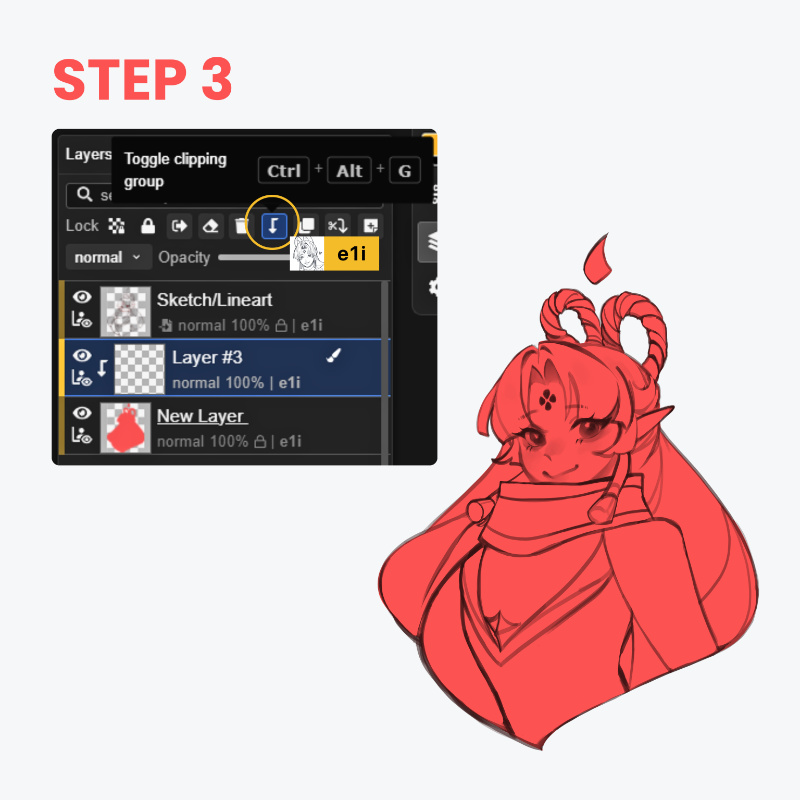
Step 3: Add a layer above the "base" layer and create a Clipping Group.
Add another layer above the "base" layer, and select the “toggle clipping group” icon. This confines the visibility of the layer to the shape of the base layer directly below it, so that whatever you draw on the clipped layer above only appears within the shape of the "base" layer below. This means it will be impossible to ever color outside the boundaries of the base layer – and since your "base" layer matches the edges of your lineart, you can't color outside the lines!
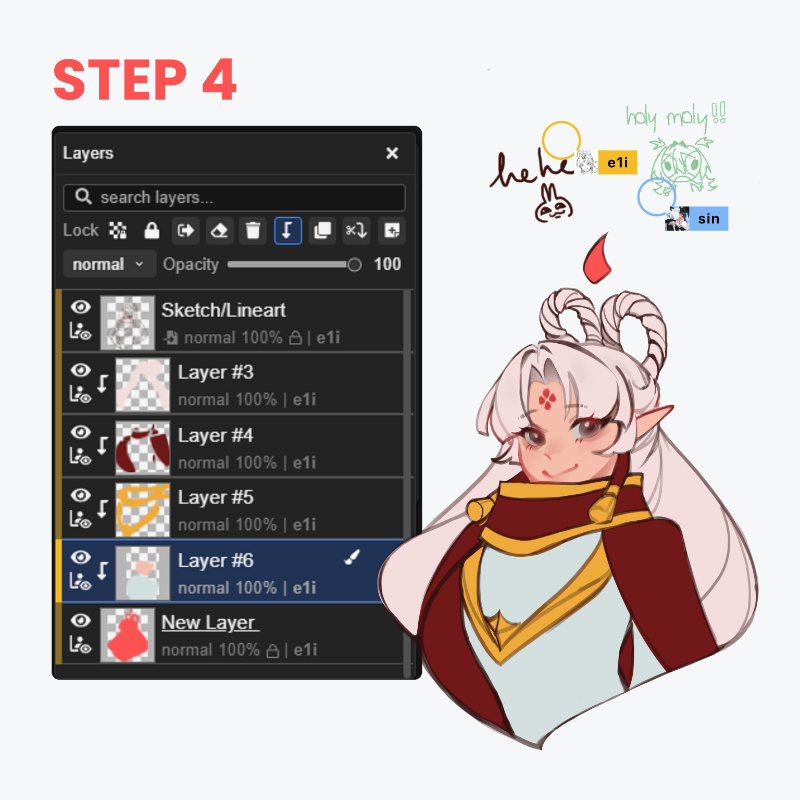
Step 4: Paint your base colors on layers clipped to your "base" layer!
Start painting your base colors! You can make use of the lasso brush again to easily fill up the part you want to color in, or you can add separate layers for the different parts of your drawing so that your brushes won’t overlap on each finished part. As long as the layers you're painting on are clipped to the "base layer" we filled in during Step 2. Then, you've got your base!
This is just one of the methods you can use to efficiently place down your base colors on your artwork in Magma, especially if you want to break down each of the colors and render them separately later on. Although this is just one of the ways, the tools and features used are part of the basic essential knowledge when it comes to efficiently color a drawing digitally!

Just getting started in Magma, or curious about the software?
Magma is an online, browser-based digital drawing software service made specifically for collaborating with other artists on a shared digital canvas. And did you know? You get a free three-month trial of Magma Blaze bundled with a variety of Wacom products, including the Wacom MovinkPad 11 all-in-one drawing tablet! Want to try out the software for the first time to join an Art Jam or create a Shared canvas? Check out this tutorial we created that walks step-by-step through the process!