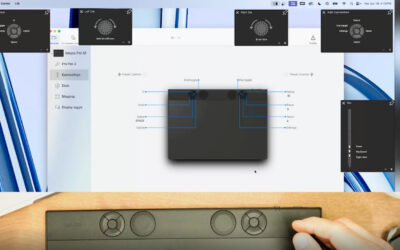


If you've just purchased one of our brand-new Wacom MovinkPad 11 or MovinkPad Pro 14 all-in-one portable pen tablets, you might have some questions about how to get yourself registered for the included Clip Studio Paint software trials.
The process is a little bit different than usual, since you have to register for the software license and it has to be definitively linked to your specific MovinkPad device. So we've laid out all the steps here for you below!
Note: To access the software trials, you have to follow the below steps on your MovinkPad device! Don't begin the process on your desktop or laptop computer – complete the entire process on your MovinkPad.
Registration is very similar on both devices, but the user interface can have some small differences, so we've split up the instructions by device. If you're registering on MovinkPad 11, those instructions are first. If you're registering on your MovinkPad Pro 14, those instructions are below – click here to jump down to that section.

How to access your Clip Studio Paint trial on MovinkPad 11
The first step after unboxing your MovinkPad 11 is to complete general device setup by following the on-screen instructions. Get connected to your Wi-Fi network, and make sure all of the software on your device is up-to-date by going to Settings > System > System Update.
Then, make sure your Wacom apps are up-to-date – you have to go to the Google Play store, search for Wacom Canvas, Wacom Support, and Wacom Tips, and then make sure to update it! In the future, they will alert you when updates are available, but this first time it has to be done manually. Then you can begin the process below!

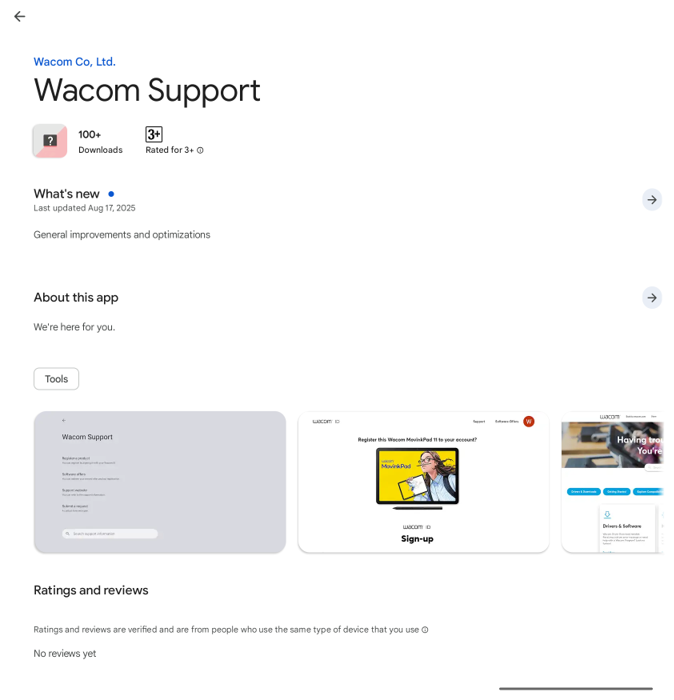
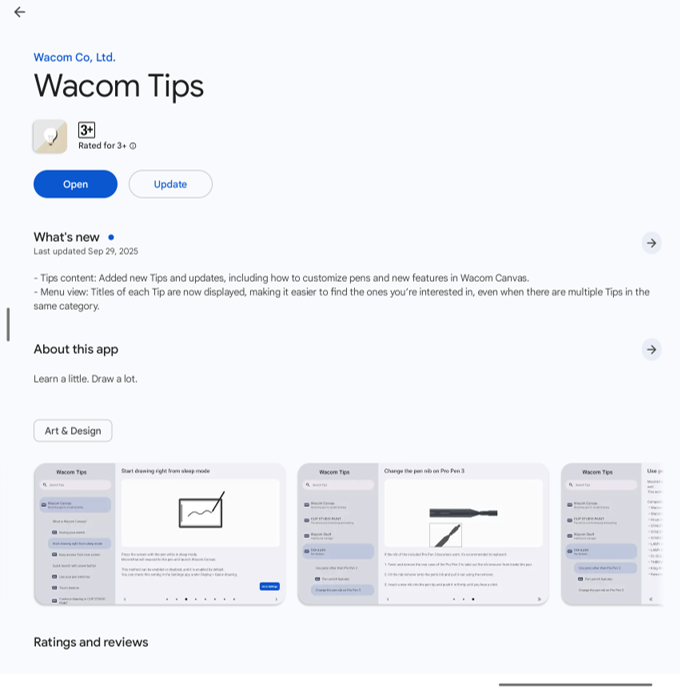
Step 1: Register your device
- Swipe up on your MovinkPad to access the list of pre-installed apps
- Find and select Settings
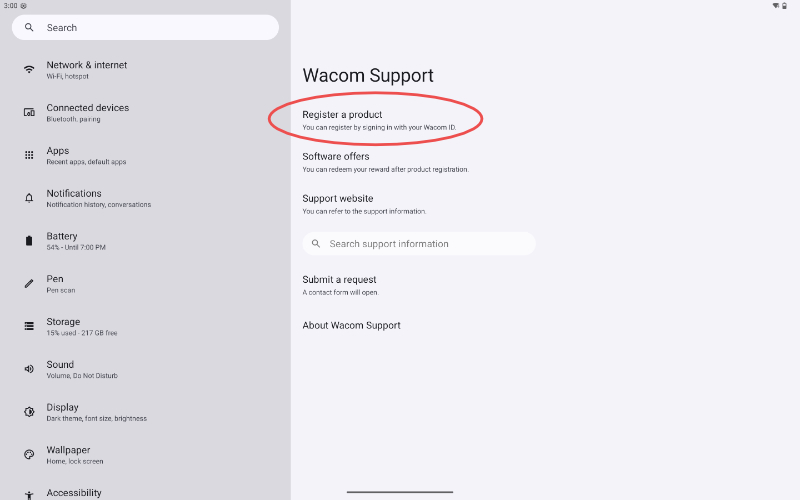
- In the left-hand menu, find and select Wacom Support
- Select the top option to Register a Product
- From there your Google Chrome browser will open and direct you to the Wacom ID site.
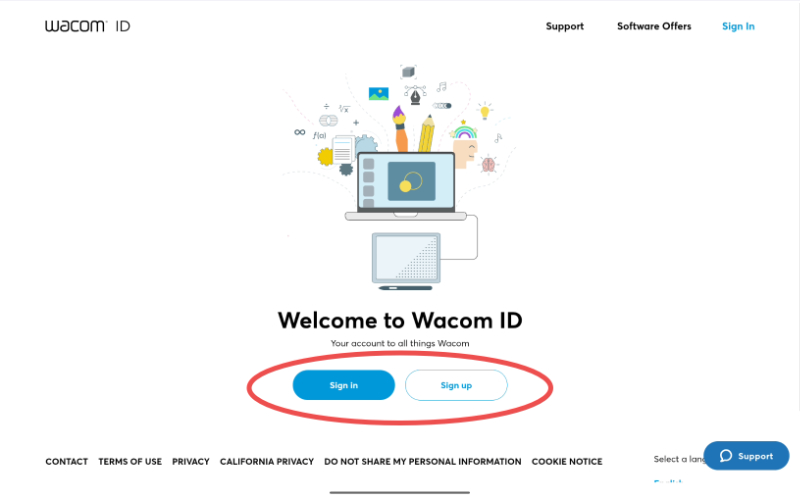
Step 2: Create or log into your Wacom ID
If you do not have a Wacom ID, please select the link that reads “Sign Up” and follow the on-screen instructions to create your Wacom ID.
If you already have a Wacom ID, you can log in with your email and password.
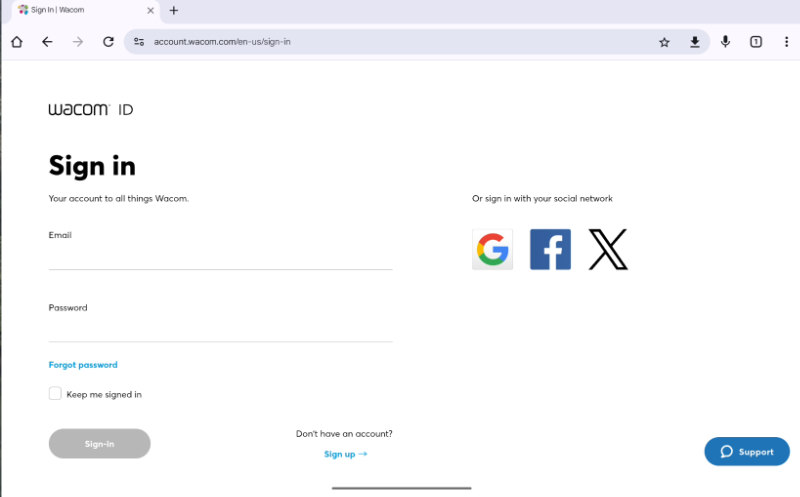
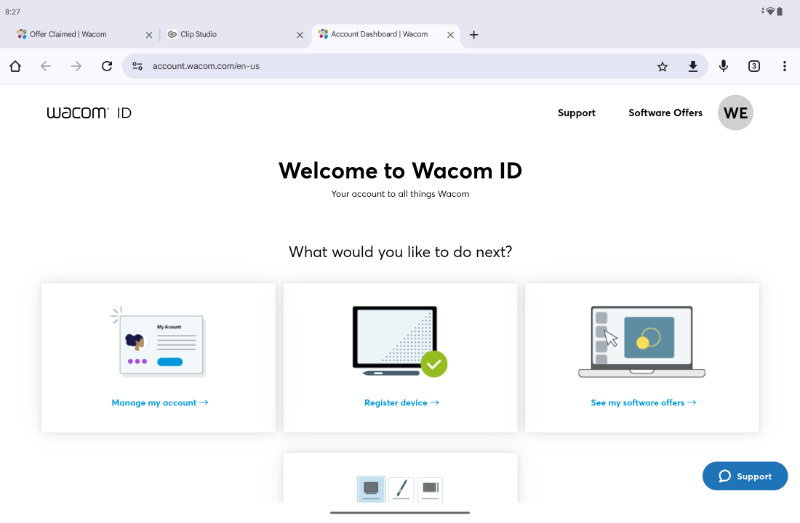
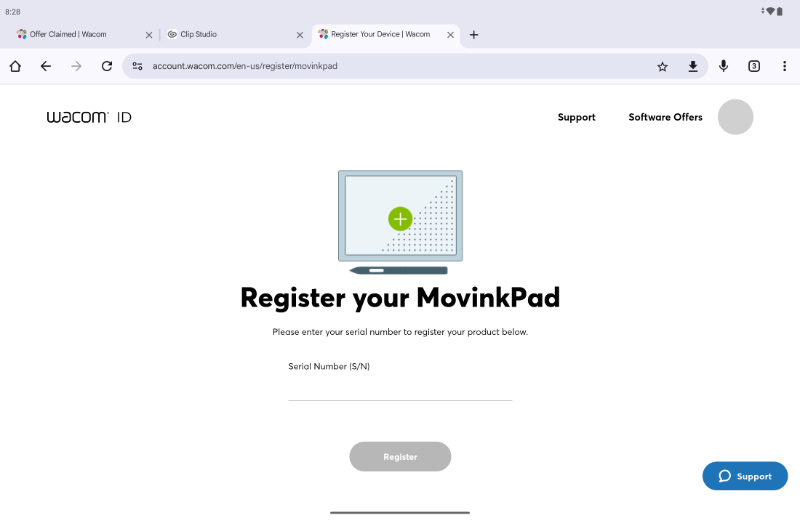
Step 3: Register your MovinkPad 11
- Once you're logged into your Wacom ID account, go to the section labeled Register device.
- Select Register MovinkPad.
- Enter in the Serial Number for your device (this can be found on the product box or the back of the tablet).
- Tap Register.
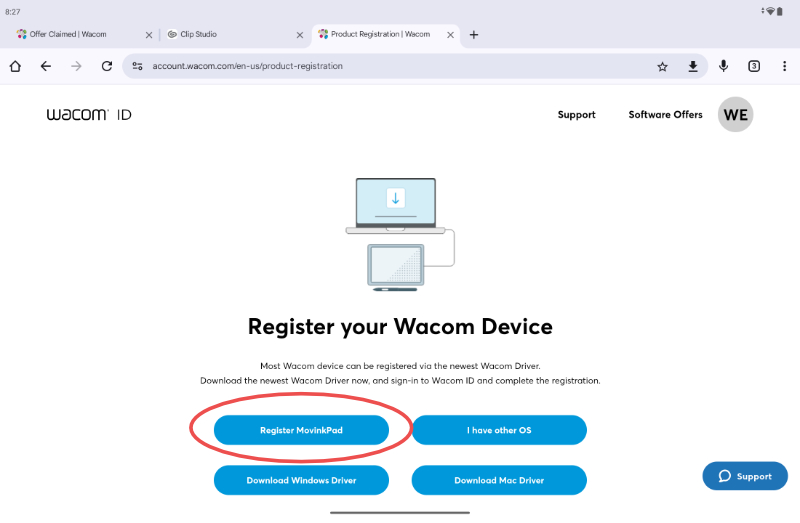
Step 4: Claim your software
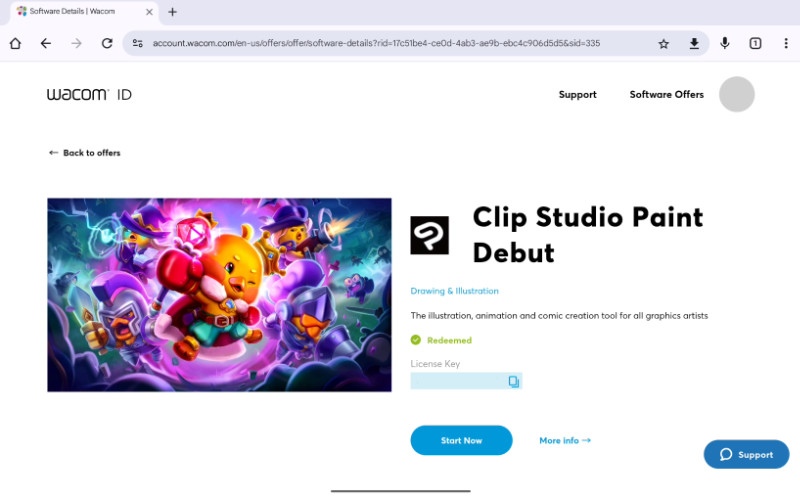
- From the main page of the Wacom ID site, go to the section labeled “See my software offers”
- Tap the option for Clip Studio Paint Debut
- On the next page, click on the Clip Studio Paint Debut section and copy the License Key provided
- With the License Key copied, open the Clip Studio Paint app from the main screen on your MovinkPad (or go to http://accounts.clip-studio.com/register on your MovinkPad 11 device).


Step 5: Create your Clip Studio Paint account and activate license key
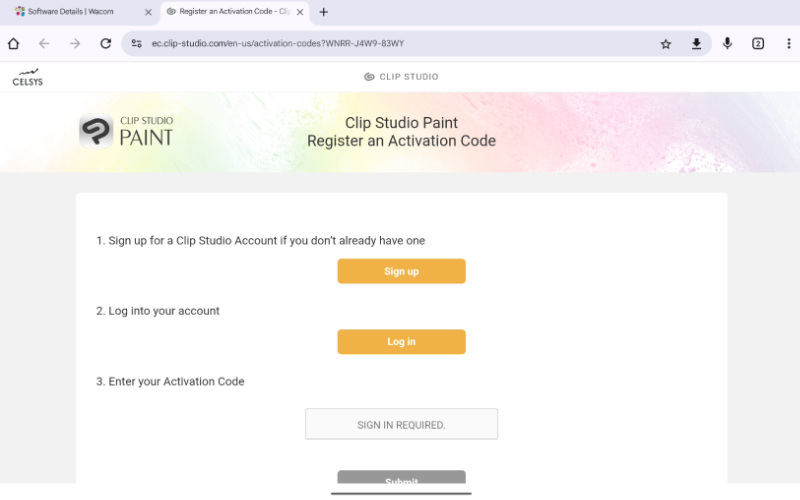
- If you do not have a Clip Studio Paint account, tap the Sign up button and follow the given steps to create an account.
- If you already have a Clip Studio Paint account, tap the Log in button and log into your account.
- Enter your License Key ('Activation Code') and click Submit.
- Follow the on-screen instructions from Celsys to finish registration.
- Once this registration is complete, open the Clip Studio Paint app on your MovinkPad again, log in again if requested, and from there you should be registered and ready to create!

How to access your Clip Studio Paint trial on MovinkPad Pro 14
Registering on Wacom MovinkPad Pro 14 is very similar to registering on MovinkPad 11, but there are some important differences. After completing the general set up of your MovinkPad Pro and making sure all of your software is up to date, you are ready to follow the next steps to register your device and gain access to your software offers:
Step 1: Register your MovinkPad Pro via Wacom Tips
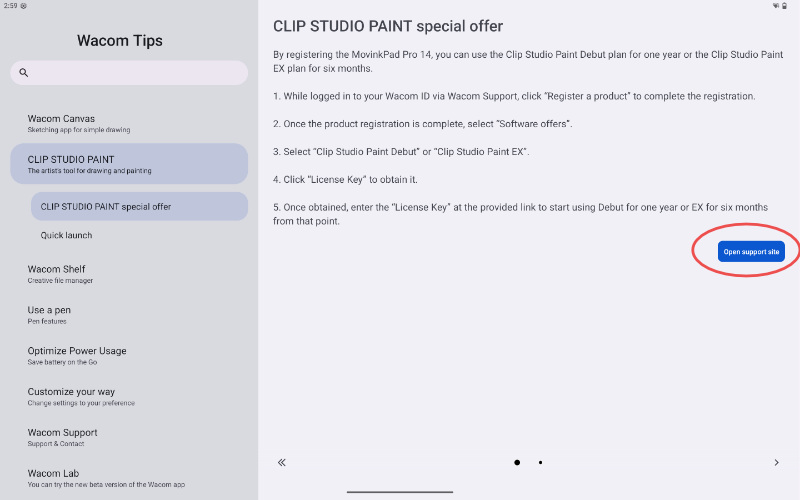
- Select the Wacom Tips app from your home screen.
- In the left-hand menu, find and select Clip Studio Paint.
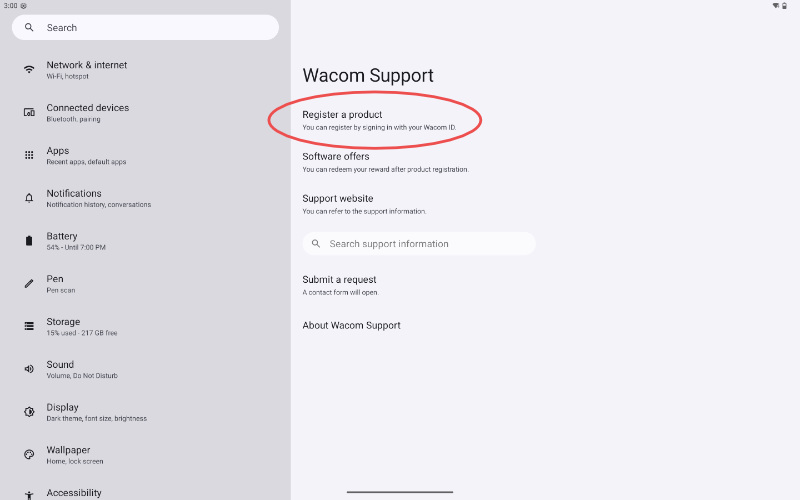
- Select the button on the right side that reads Open Support site. The Wacom Support section in your Android settings should open.
- Select the Register a product option.
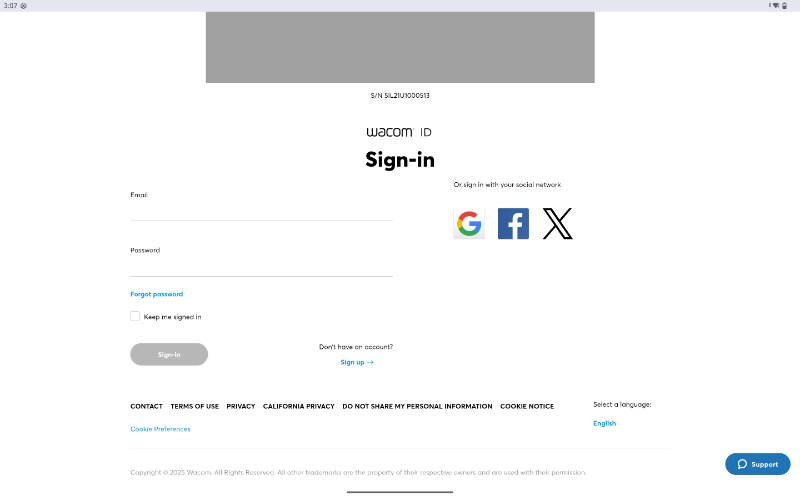
- From there, your Google Chrome browser should open directly to the Wacom ID website.
- You should see an image of the MovinkPad Pro along with the appropriate serial number.
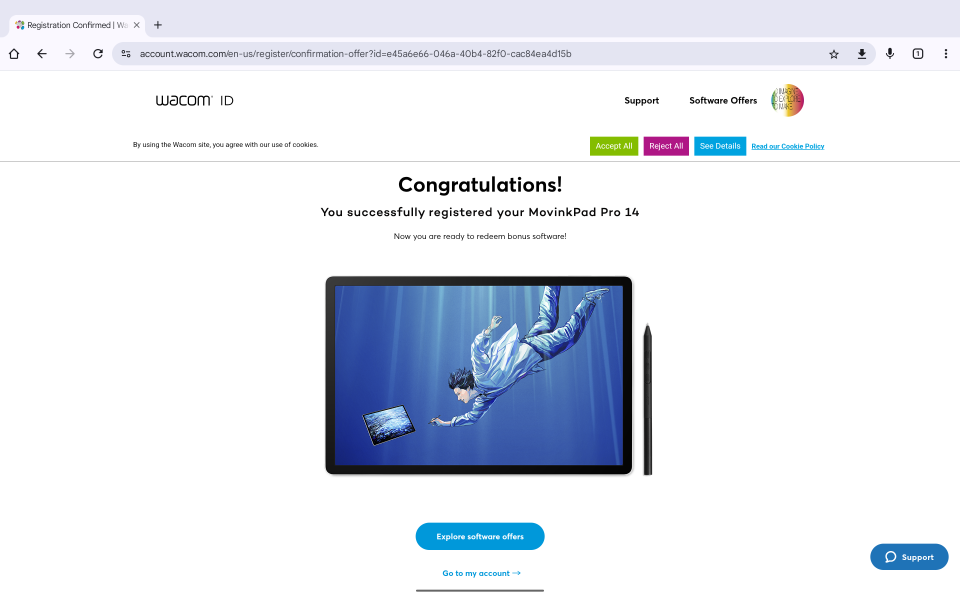
- Follow the prompts to either create a Wacom ID account or sign into your existing account. Once signed into your Wacom ID account, your device will be registered!
Note: If you do not see a screen that says “Congratulations, you’ve registered,” go the main Wacom ID page and select the Register your device option. You may need to manually enter your serial number, which is located on the side of the box or back of the device itself.
Step 2: Claim your software
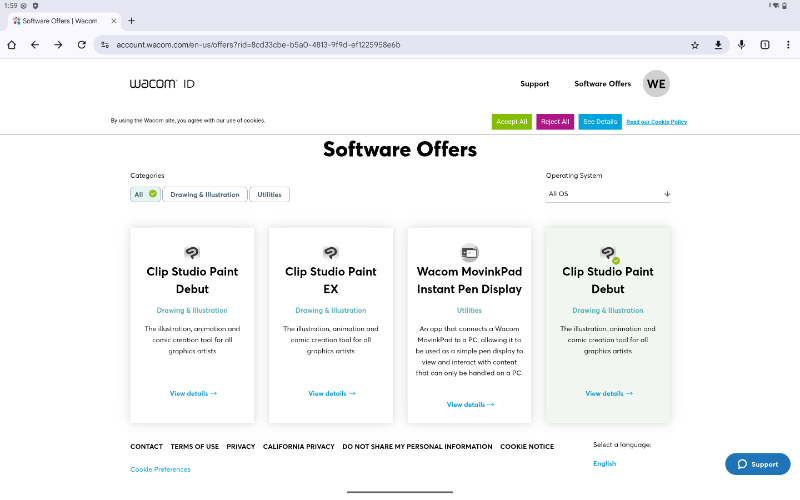
- Click the Explore Software Offers on the registration page. Or, from the main page of the Wacom ID site, go to the section labeled “See my software offers.”
- You should then see an option for Clip Studio Paint Debut or Clip Studio Paint EX. Select which version you would like to activate first.
- On the next page, copy the license key provided. Then slect the ‘Start Now’ button and the Clip Studio Paint application should open up on your device.

Step 3: Create your Clip Studio Paint account and activate License Key
- If you do not have a Clip Studio Paint account, tap the Sign up button and follow the given steps to create an account.
- If you already have a Clip Studio Paint account, tap the Log in button and log into your account.
- Enter your License Key ('Activation Code') and click Submit.
- Follow the on-screen instructions from Celsys to finish registration.
- Once this registration is complete, open the Clip Studio Paint app on your MovinkPad again, log in again if requested, and from there you should be registered and ready to create!