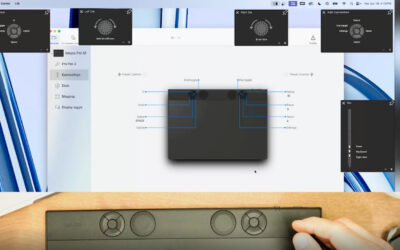

What is a "driver?" At its core, a driver is software that helps a device, like a Wacom tablet, communicate effectively with your computer. Want to learn more about what drivers are, what they do, and why Wacom drivers are considered some of the best in the digital art business? Click here for a detailed article going over all of these questions and more.
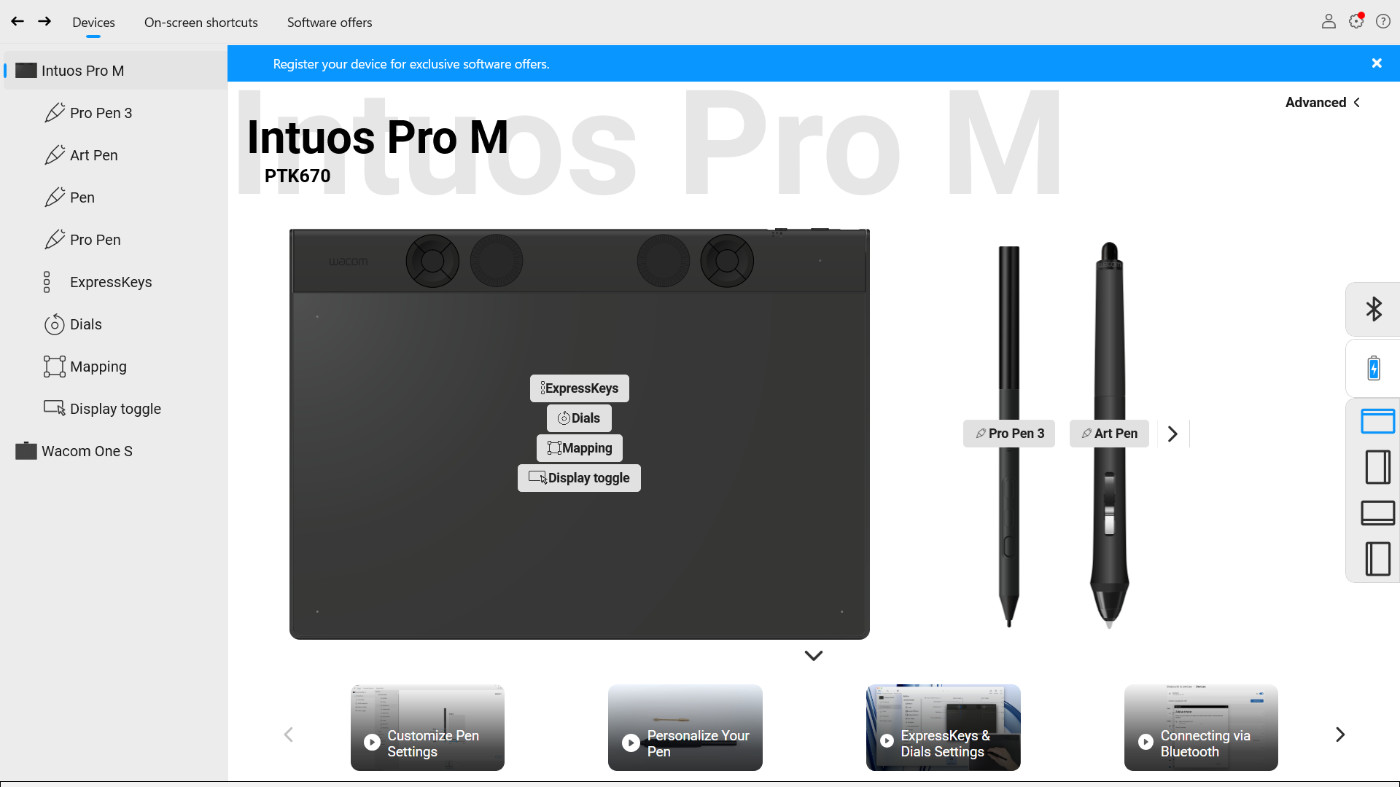
Wacom Center is the home for your Wacom drawing tablet drivers. It’s where you can fine-tune nearly everything related to your Wacom pen tablet or display, and where you can find all kinds of features specific to Wacom drivers. And Wacom continually updates them to work better – whether because of updates to operating systems like Windows or Mac OS or software applications like Adobe Creative Suite or CLIP STUDIO PAINT, to increase the driver's stability and compatibility, or because we release new features to make them even more functional and feature-filled. That last reason is the main reason for the newest driver update!
The main new features in the latest Wacom driver update
In addition to some quality of life and compatibility updates, the newest release of the Wacom driver has some new features that professional users, especially, have been requesting for quite a while.
New Feature 1: Workflow Settings feature
Compatibility: Wacom Intuos Pro, Cintiq, Cintiq Pro, and Movink 13
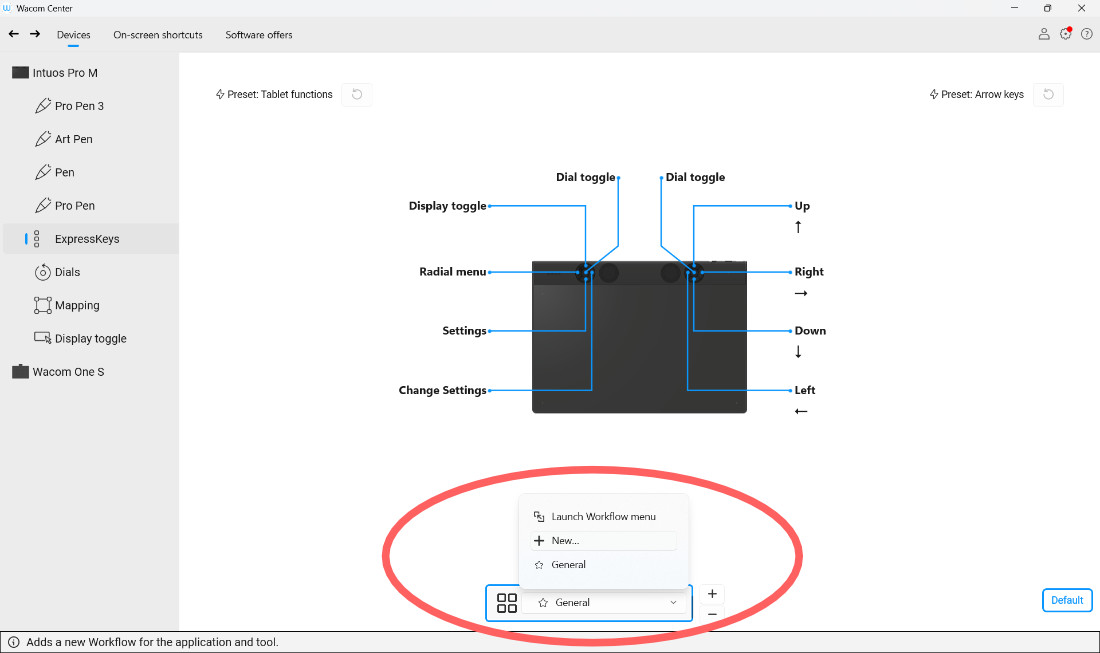
The new Workflow Settings feature lets users create multiple sets of custom workflow settings within a single application. Previously, Wacom drivers allowed artists to create custom settings for their pen and tablet for each application, because artists often have different workflows depending on which software they're using. You don't need your pen buttons to be set to the same shortcuts in a 3D sculpting app like Blender, for example, as you do when you're sketching or painting in CLIP STUDIO PAINT.
However, the new Workflow Settings feature acknowledges that some creators have multiple different workflows within the same application, and might want to quickly switch from one set of settings to another within the same software. For example, the same artist might use Adobe Photoshop for photo retouching, drawing and painting, and color grading – and might want a different set of pen button, gesture, and/or ExpressKey settings for each different task. Now, artists can create a set of settings, give it a custom icon and name, and easily switch to that set of settings within the same application.
To use the new feature, users simply have to customize their ExpressKeys and/or pen buttons and set up the workflow in the Workflow settings menu. The Workflow menu can also be launch as an on-screen display menu, allowing easy and fast workflow switching within a software application and without having to go back to Wacom Center to switch workflows.
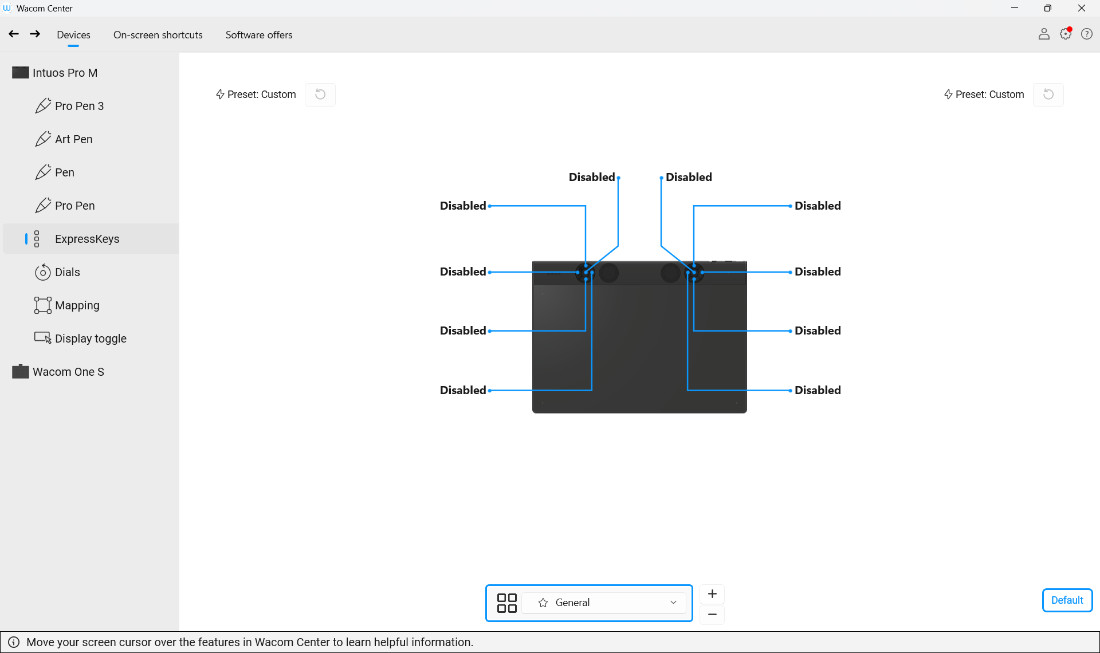
Updated Feature 2: Disable All Expresskeys
Compatibility: All products
The Disable all ExpressKeys setting is pretty straightforward, and has been a feature for a while. But it has recently been moved to make accessing it easier. Instead of its old location in the Advanced Settings area, it's now located in the General Settings menu.
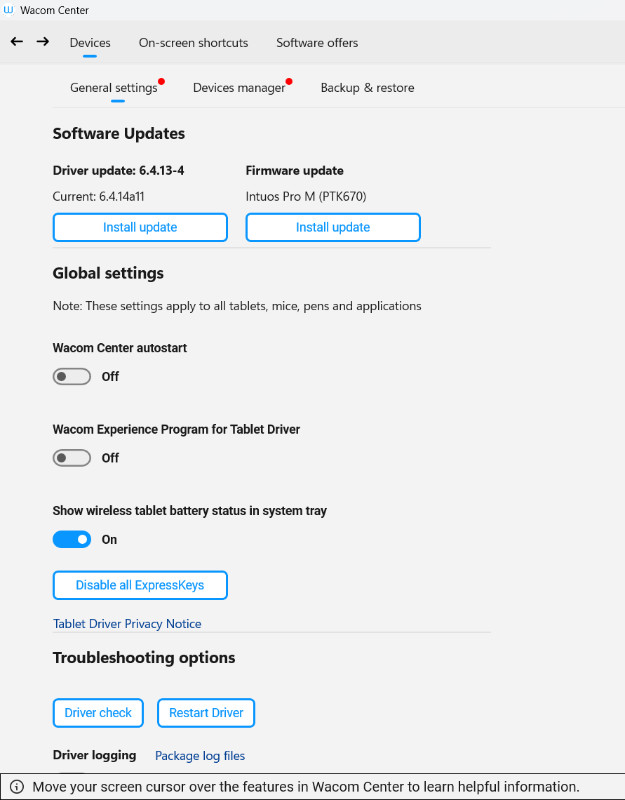
Updated Feature 3: Hide Wireless Tablet Battery Status
Compatibility: Wacom devices with a built-in battery
For Wacom devices with a built-in battery, like Wacom Intuos Pro, a battery status icon was previously displayed by default in the OS system tray. This feature is intended to help users know if their battery is charging, or if it will need to charge soon. Some users wanted a way to remove this icon, so there is now a way to hide it from the system tray in the General Settings menu. The setting "Show wireless tablet battery status in system tray" is now set to "On" by default, but it can be set to "Off" to hide the icon.
Other updates to driver compatibility and stability
The latest driver update also has improvements to compatibility and stability. For example, Application icons will no longer be doubled when adding Application-specific settings to a Pen in Wacom Center. Some updates are operating system-specific, however.
Windows software improvements
For Windows users with ARM processors, some Touch settings wouldn't work as expected on Wacom Cintiq Pro 17, 22, and 27 creative pen displays. This has been fixed!
MacOS software improvements
Some pen functionality has been improved for Mac users. Pens will now start drawing as soon as the tip touches the Wacom device surface, the end of a pen stroke will no longer be delayed when using high stabilization settings in CLIP STUDIO PAINT and MediBang Paint, and it's no longer necessary to put repeated pressure on the pen tip.
Another issue was related to restarting a computer while a Wacom device was connected to the computer; that was fixed and now Wacom devices will display in Wacom Center or Wacom Tablet Properties after a restart where the device remained connected.
Frequently Asked Questions
What is a Wacom Driver?
A driver helps a Wacom device interact with a computer. For a detailed explanation about Wacom drivers, how they work, and many of their features, click here.
What new features were included as part of the latest Wacom Driver release?
The main new feature was the Workflow Settings feature. Updates were also made to the Disable All ExpressKeys feature and the Hide Wireless Tablet Battery Status feature.
What is the Workflow Settings feature of the Wacom Driver?
The new Workflow Settings feature lets users create multiple sets of custom workflow settings within a single application. For example, the same artist might use Adobe Photoshop for photo retouching, drawing, and color grading – and might want a different set of pen button and/or ExpressKey settings for each different task. Now, artists can create a set of pen and tablet settings for a particular task, give it a custom icon and name, and easily switch to that set of settings within the same application when they change tasks.